
An AI B-roll generator is a tool that finds or creates supporting footage for your video, such as a city street when you mention travel or a close-up of a product when you describe it, and places it over your main shot. B-roll keeps viewers watching, hides jump cuts and shows what you are talking about, but searching stock libraries and filming extra shots takes hours. AI tools now analyse your script or dialogue, then source stock clips or generate new shots that match each moment.
Demand for video keeps growing. Wyzowl’s 2026 video marketing research found that 91% of businesses use video as a marketing tool, and 63% of video marketers have used AI tools to help create or edit marketing videos, up from 51% the year before. For YouTubers, that means faster production is no longer optional, and B-roll is one of the easiest places to save time.
This guide compares six AI B-roll tools for YouTubers, from complete editors to plugins and clipping tools.
What makes a good AI B-roll tool
- Context awareness: it matches B-roll to what is being said, not just random stock clips.
- Stock and AI generation: it can find existing footage and generate new shots when stock does not fit.
- Placement and timing: it places clips on the right moments of your timeline.
- Easy changes: you can swap, retime, or remove any clip.
- Fit with your workflow: it works where you already edit, whether that is a browser editor, a plugin, or a clipping tool.
The 6 tools at a glance
| Tool | How it adds B-roll | Best for | Starting price |
|---|---|---|---|
| Invideo | Sources stock or generates custom B-roll with 200+ AI models and places it on your timeline | YouTube videos edited in one place | Basic plan from $9 per seat per month |
| Riverside | AI B-roll included on the Pro plan | Recorded interviews and podcasts | Pro from $24 per month billed yearly |
| OpusClip | AI B-roll as part of its clipping and editing tools | Short clips for Shorts, Reels and TikTok | Free plan; Starter $9 per month |
| Async | Generates B-roll, visuals, or scenes in chat with models such as Kling, Veo, and Seedance | Chat-based editing | Free plan; Essentials listed at $11.99 per month |
| AutoCut | AutoB-Rolls adds stock video from Storyblocks inside your editor | Premiere Pro and DaVinci Resolve users | AI plan $14.90 per month billed yearly |
| Eddie AI | Logs your own B-roll and can generate video | Large shoots with lots of footage | 500 free credits; packs from $10 |
1. Invideo: Best overall AI B-roll generator for YouTubers
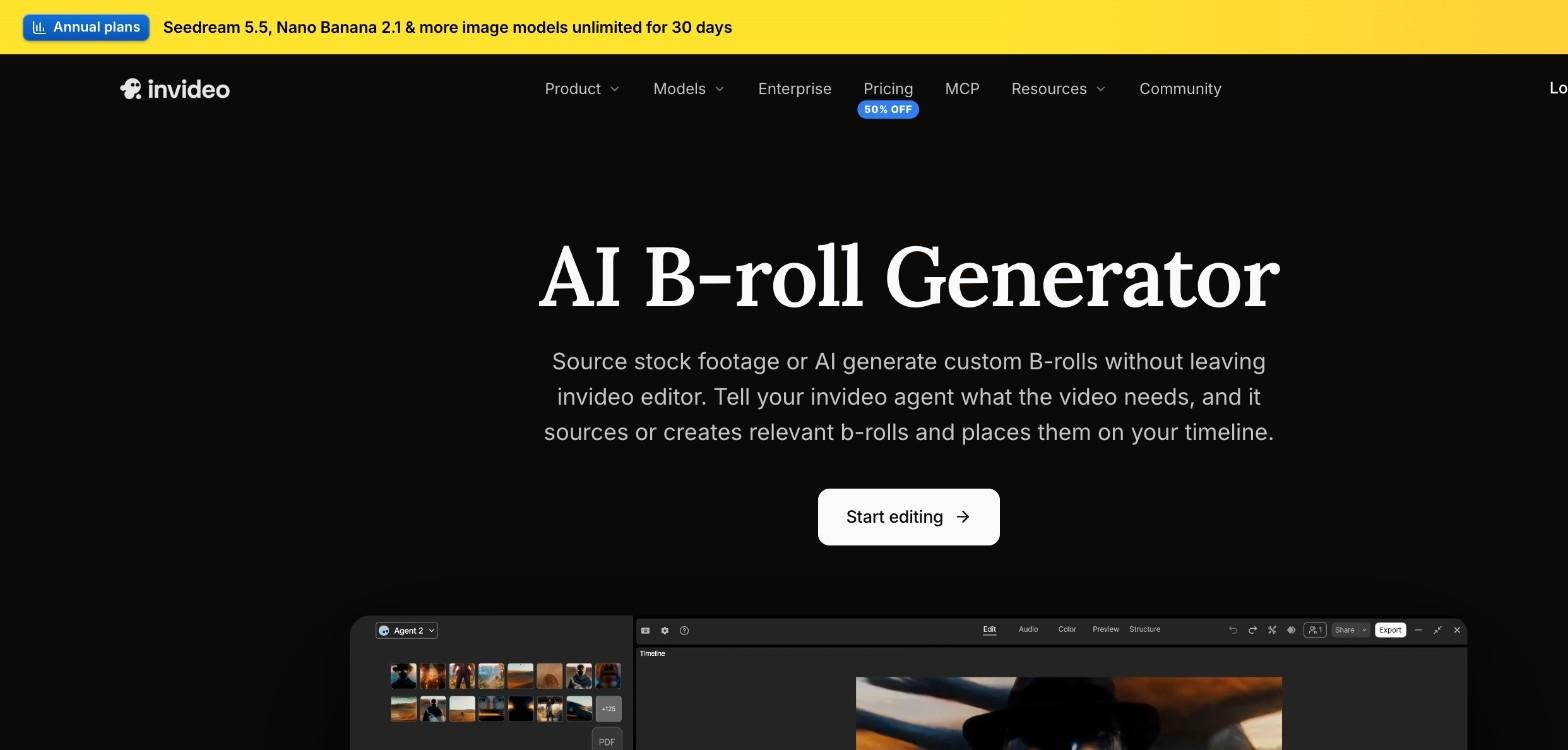
Invideo Editor handles B-roll from inside the edit, so you never leave your project to search for footage. Upload your video and a script if you have one, then ask the agent to analyse the script or dialogue and find moments that need visual support. It can search a stock library for footage, music, and sound effects, or generate custom shots with access to 200+ AI models when stock does not fit.
As an AI B-roll generator, InVideo Editor also takes care of placement. Tell the agent which lines, topics, or moments to support, and it aligns the B-roll with the relevant dialogue and action on your timeline. You can keep the result, ask for replacements, or adjust the timing and placement yourself on a multitrack, frame-accurate timeline. It can also generate voiceovers and music to go with your B-roll.
This works well for the formats YouTubers make most often. In talking-head videos and podcasts, the agent can add visuals for the examples a speaker mentions. In tutorials and explainers, it finds or generates shots of the steps being described, and in documentaries and video essays, it adds footage that establishes a setting or illustrates an idea. The Basic plan starts at $9 per seat per month on monthly billing, and AI generation uses credits from your plan.
Verdict: Invideo is the best overall choice because it combines stock search, AI generation, and automatic placement in a full editor, so B-roll becomes part of the edit instead of a separate task.
2. Riverside: For B-roll on recorded interviews and podcasts
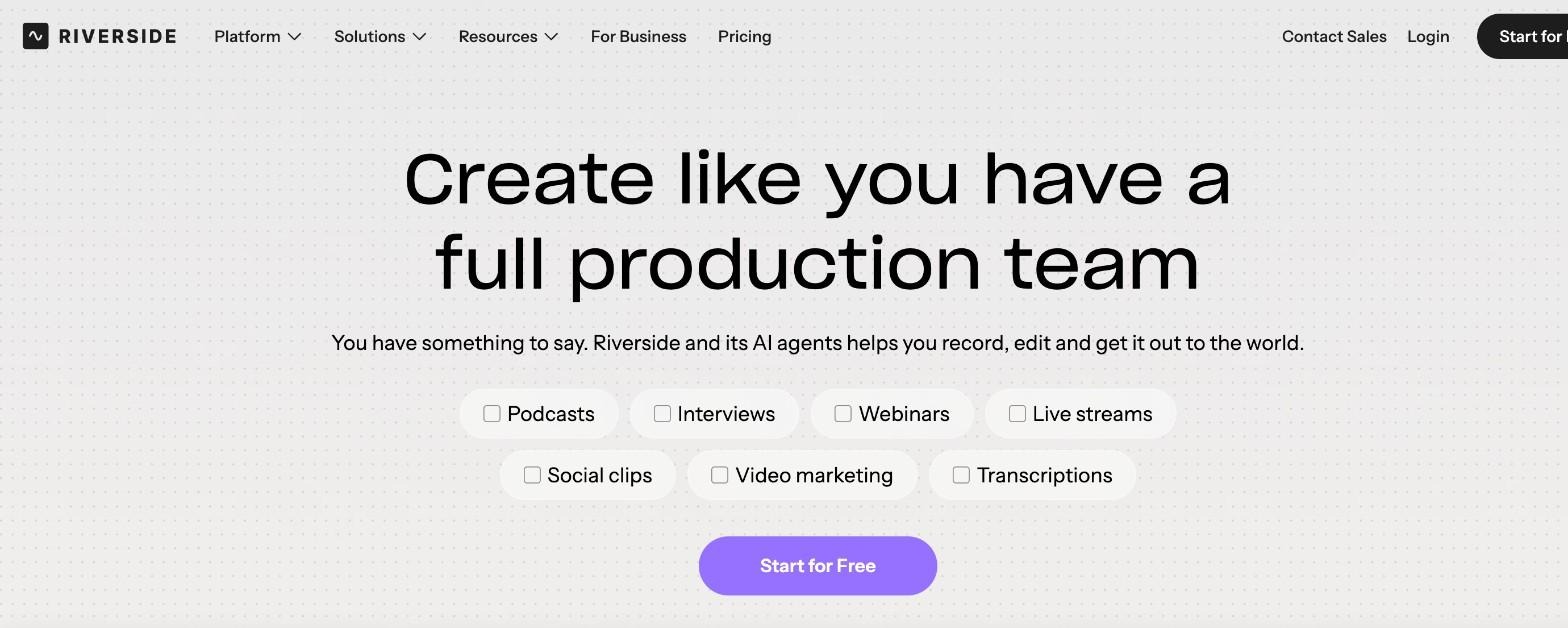
Riverside is a recording and editing platform for podcasts, interviews, and webinars. It records up to 4K video and uncompressed audio locally, and its Pro plan includes AI B-roll alongside eye contact correction, removal of silences and filler words, Magic Clips and show notes.
The Pro plan costs 24permonthbilledyearly(35 monthly) and comes with a 14-day free trial.
Verdict: Riverside is a good fit if you already record interviews there and want B-roll added in the same workflow.
3. OpusClip: For B-roll in short clips
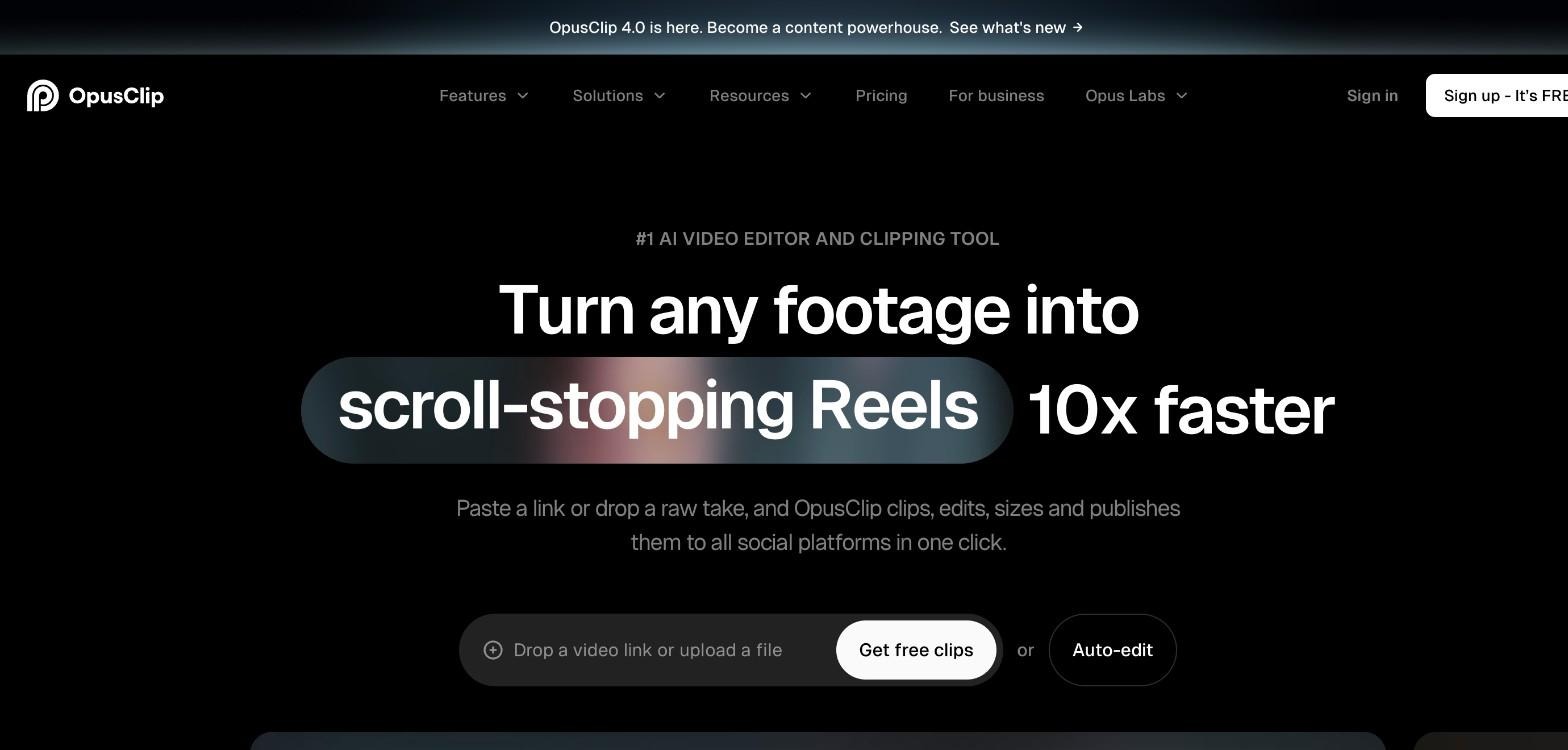
OpusClip turns long videos into short clips and lists AI B-roll among its tools, along with auto-editing, AI clipping, captions, reframing, audio enhancement, and voice-over. You paste a link or upload a file, and it clips, edits, sizes, and publishes the results to social platforms.
OpusClip has a free plan, and the Starter plan costs $9 per month.
Verdict: OpusClip suits YouTubers who want B-roll in their Shorts and Reels as part of a clipping workflow.
4. Async: For generating B-roll by chatting
Async, formerly Podcastle, is a chat-based AI video editor. You can generate B-roll, visuals, scenes, or music directly in the chat without leaving the edit, using models listed on its pricing page such as Kling, Google Veo, and Seedance 2.0. It can also fix the rough cut, clean audio, add captions, and make clips.
Async has a free plan with limited lifetime credits and 720p export, and paid plans start at $11.99 per month for Essentials.
Verdict: Async is a good option for creators who prefer to describe changes in chat and want access to several generation models.
5. AutoCut: For stock B-roll inside Premiere Pro and DaVinci Resolve
AutoCut is an AI plugin for Premiere Pro and DaVinci Resolve. Its AutoB-Rolls feature adds stock video from Storyblocks, and the same plan includes silence removal, captions, automatic zooms, bad-take removal, and chapters.
The AI plan costs $14.90 per month billed yearly, with a 14-day free trial. You need Premiere Pro or DaVinci Resolve to use it, and AutoB-Rolls works with stock footage rather than generating new shots.
Verdict: AutoCut is the easiest way to add stock B-roll if you already edit in Premiere Pro or DaVinci Resolve.
6. Eddie AI: For organising B-roll from large shoots
Eddie AI is an AI video editor aimed at professional editors. It transcribes every word, syncs camera angles, and logs both A-roll and B-roll, which helps when you have hours of your own footage to search. It also lists video generation, rough cuts, social clips, and captions among its features, and works with Premiere Pro, DaVinci Resolve, Final Cut Pro, and Avid.
New accounts get 500 free credits, which cover two hours of footage, with credit packs from $10 that never expire.
Verdict: Eddie AI is a strong pick for creators who shoot a lot of their own B-roll and need help finding the right shots.
How to use AI B-roll well
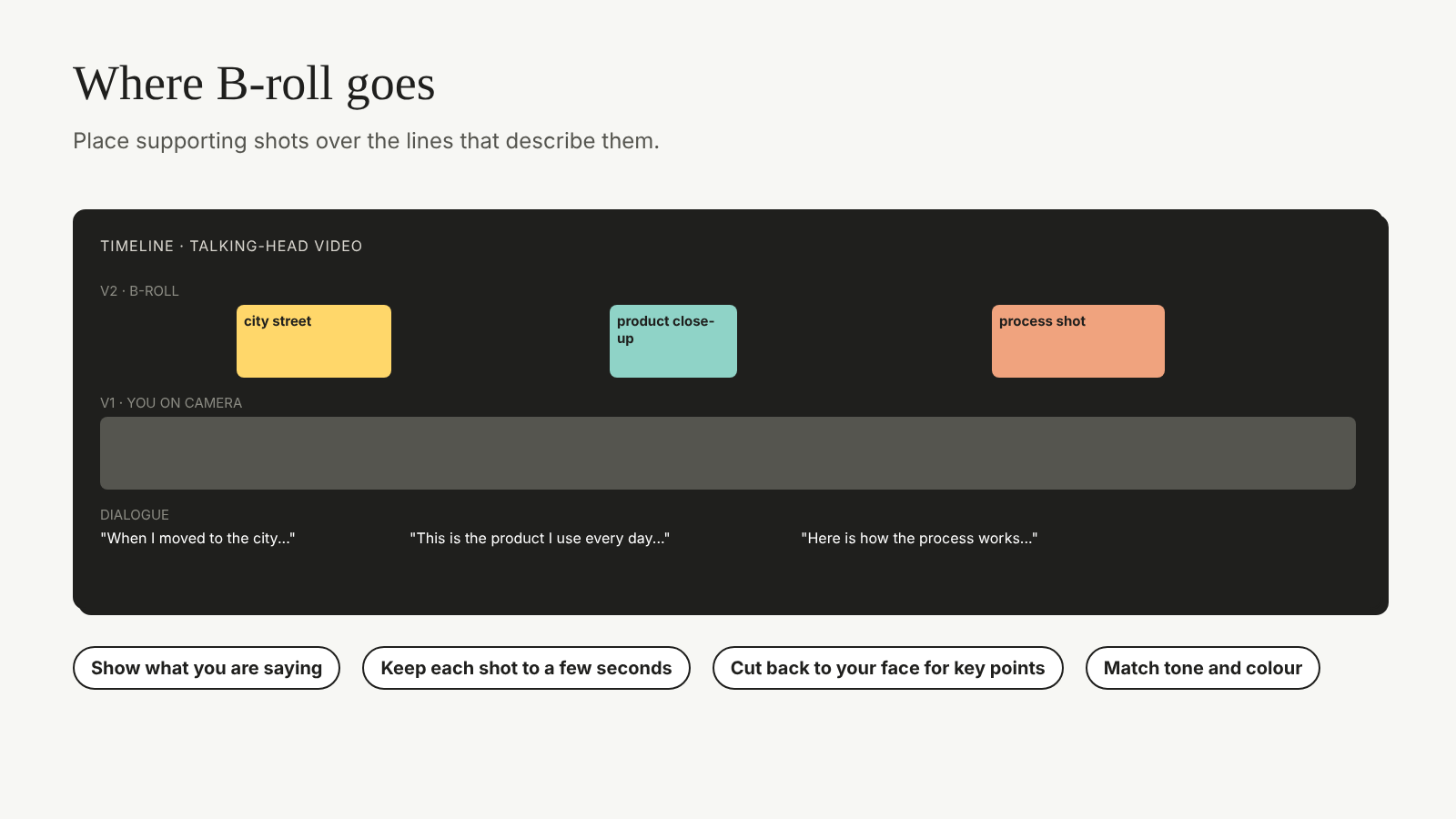
AI makes B-roll faster, but a few habits keep it looking natural. Use B-roll to show what you are saying, not to fill every second. Keep each shot short, usually a few seconds, and cut back to your face for the key points so viewers stay connected to you. Check that generated shots match the tone and colour of your own footage, and replace anything that looks off. Wyzowl’s video marketing statistics are a useful benchmark for how businesses and creators are using video and AI.
For more tools that speed up a YouTube channel, from scripting to thumbnails, see SkillWaala’s list of AI tools for YouTubers. This roundup of AI tools for content creators covers writing and design, and these video editing trends show where AI fits into modern editing.
Key takeaways
- AI B-roll generators find or create supporting footage and place it at the right moments.
- Most businesses use video, and most video marketers have now used AI tools.
- InVideo is the best overall choice, combining stock search, AI generation with 200+ models, and automatic placement on a timeline.
- Riverside, OpusClip and Async include B-roll within recording, clipping or chat-based editing.
- AutoCut adds stock B-roll inside Premiere Pro and DaVinci Resolve, and Eddie AI helps organise your own footage.
- Keep B-roll short, relevant and consistent with your main footage.
Conclusion
B-roll is one of the best ways to make a YouTube video more engaging, and AI now removes most of the searching and placing. InVideo leads this list because it finds, generates, and places B-roll inside a full editor, while Riverside, OpusClip, Async, AutoCut, and Eddie AI each suit a particular workflow. Start with one video and see how much time it saves. What kind of B-roll does your next video need most?
FAQs
B-roll is supporting footage shown over or between your main shot. It illustrates what you are saying, covers cuts, and keeps the video visually interesting.
Yes. Tools such as InVideo and Async can generate new shots from a description when stock footage does not match what you need.
InVideo is a good starting point because you can ask the agent for B-roll in plain language, and it places the clips on your timeline, where you can change anything yourself.
No. InVideo, Riverside, OpusClip, Async, and Eddie AI work in their own apps. AutoCut is the exception, because it is a plugin for Premiere Pro and DaVinci Resolve.
There is no fixed rule. Use it where it helps viewers understand or stay interested, and return to your main shot for key points and personal moments.
Usually, yes. Most tools charge credits for AI generation, and the cost depends on the model and clip length, so check your plan’s credit allowance before generating many shots.
About The Author