AI video tools are getting surprisingly capable, but creating a good animated YouTube video still involves more than typing a prompt and hitting generate. You need a script, consistent characters, backgrounds, voices, animation, and enough editing control to make everything work together.
AutoDraft AI tries to bring most of that workflow into one place. That’s what makes it interesting, particularly for animated stories, educational content, and faceless channels. In this AutoDraft AI Review 2026, I’ll look at what it does well, where it struggles, how much it costs, and whether it actually makes YouTube creation easier.
What is AutoDraft AI?
AutoDraft AI is a web-based AI animation platform built by Bengaluru-based All Bots Technologies. Rather than focusing on one part of video creation, it brings characters, backgrounds, voiceovers, music, animation controls, and editing into the same workflow.
What stands out to me is how specific its audience is. AutoDraft AI isn’t trying to replace every video editor. It is primarily built around 2D storytelling and YouTube-style animation, where maintaining the same characters and visual style across scenes matters.
That makes AutoDraft AI for YouTube particularly relevant for:
- Kids’ and nursery-rhyme channels
- Animated story and horror channels
- Educational videos
- Explainer videos
- Faceless YouTube channels
You also don’t need traditional drawing or animation skills to get started. That lowers the entry barrier considerably if your goal is to learn an AI-assisted animation workflow rather than spend months mastering professional animation software first.
AutoDraft AI Features: What Can You Actually Do With It?
AutoDraft AI has a fairly wide feature set, but I wouldn’t judge it by the number of AI tools packed into the dashboard. The more useful question is how many parts of an animation workflow you can complete without constantly jumping to another platform. Here are the AutoDraft AI features I find most relevant for YouTube creators:
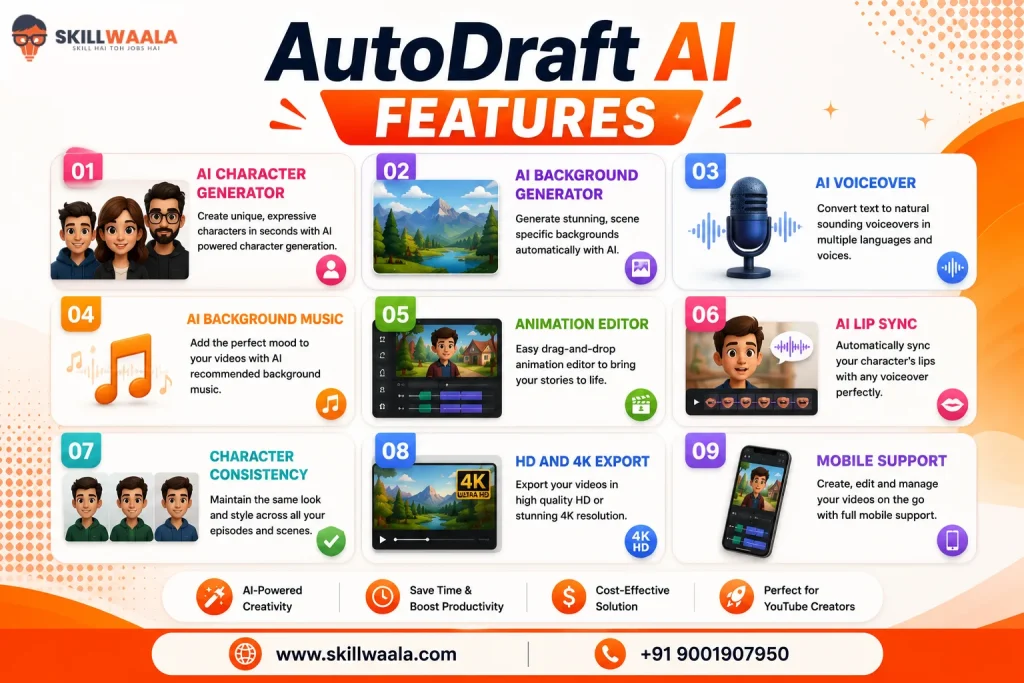
1. AI Character Generator
Rating: 5/5
AutoDraft lets you describe a character with a text prompt and generate it in different visual styles. More importantly, it focuses on keeping characters visually consistent across scenes. This is something general-purpose AI image generators can struggle with. AutoDraft also offers 100+ style templates and built-in controls for poses and expressions.
Use Case: Recurring characters for kids’ stories, horror stories, mythology videos, and animated series.
2. AI Background Generator
Rating: 4/5
You can generate backgrounds from text prompts, sketches, references, or storyboards rather than searching stock libraries for every scene. The storyboard-to-image option is particularly useful because it gives you more control over composition while maintaining a consistent visual style.
Use Case: Creating classrooms, forests, haunted houses, villages, fantasy worlds, or other recurring environments.
3. AI Voiceover
Rating: 4/5
AutoDraft includes hundreds of AI voice presets, with options covering different accents, ages, tones, and speaking styles. You can also adjust elements such as speed and pitch and assign different voices to different characters.
I wouldn’t pick an animation platform purely because it has AI voices. Dedicated voice tools can offer more depth. The advantage here is workflow. Your generated dialogue can go straight into the animation instead of being exported and imported between several tools.
Use Case: Narration, character dialogue, educational videos, and faceless storytelling.
4. AI Background Music
Rating: 4/5
There is also a built-in AI sound generator for creating background music from mood-based prompts. For example, you could request playful music for a children’s scene or something darker for a horror story. AutoDraft also provides a music library if you don’t want to generate everything with AI.
Use Case: Adding atmosphere to stories without searching separate music libraries.
5. Animation Editor
Rating: 4/5
This is where AutoDraft becomes more interesting than a basic AI image generator. Its editor combines characters, backgrounds, props, audio, effects, transitions, and other assets on a timeline. It also provides layer controls and chroma key functionality.
You get 1,000+ action controls and 100+ expressions and lip-sync options, so you aren’t limited to turning static AI images into a slideshow.
Use Case: Building a complete 2D animated scene without traditional keyframe animation.
6. AI Lip Sync
Rating: 4/5
Lip sync is one of those features that sounds minor until you try animated dialogue manually. AutoDraft can synchronize character mouth movements with generated voiceovers and provides facial expressions that can be used alongside dialogue. For dialogue-heavy story channels, that can remove a surprisingly tedious part of production.
Use Case: Talking characters, conversations, nursery rhymes, and dialogue-heavy animated stories.
7. Character Consistency
Rating: 5/5
Character consistency is probably one of AutoDraft AI’s strongest selling points. You can reuse characters while changing poses, expressions, actions, and scenes instead of generating a completely different-looking person every time.
AutoDraft also supports custom-trained models for creators who need a more specific visual identity. That matters much more for a 10-minute animated story than it does for generating a single thumbnail.
Use Case: Maintaining the same protagonist, narrator, mascot, or supporting characters across multiple scenes and episodes.
8. HD and 4K Export
Rating: 5/5
Once your animation is finished, AutoDraft AI supports high-resolution exports, including 4K. This is useful if you create content for YouTube, where exporting at a higher resolution gives you more flexibility for full-screen videos and future reuse.
I wouldn’t consider 4K export a reason to choose AutoDraft on its own, but it removes an unnecessary limitation at the end of the workflow.
Use case: Exporting animated stories, explainers, educational videos, and other YouTube content in high resolution.
9. Mobile Support
Rating: 4/5
AutoDraft AI also provides mobile access, making it possible to work on projects without always being tied to a desktop setup. For serious timeline editing, I’d still choose a laptop or desktop. A larger screen simply makes managing scenes, characters, audio, and layers easier. Mobile access makes more sense for checking projects, generating assets, or making smaller changes while you’re away from your primary setup.
Use Case: Generating assets, reviewing projects, and making quick changes when a desktop isn’t available.
My Impression: AutoDraft AI stands out not because of any single feature, but because it brings the entire animation process into one streamlined workflow. While character creation, AI voices, and background generation are available in other tools, AutoDraft combines them seamlessly, making it especially valuable for creators producing recurring YouTube videos, animated series, or story-driven content.
How to Create a YouTube Video with AutoDraft AI?
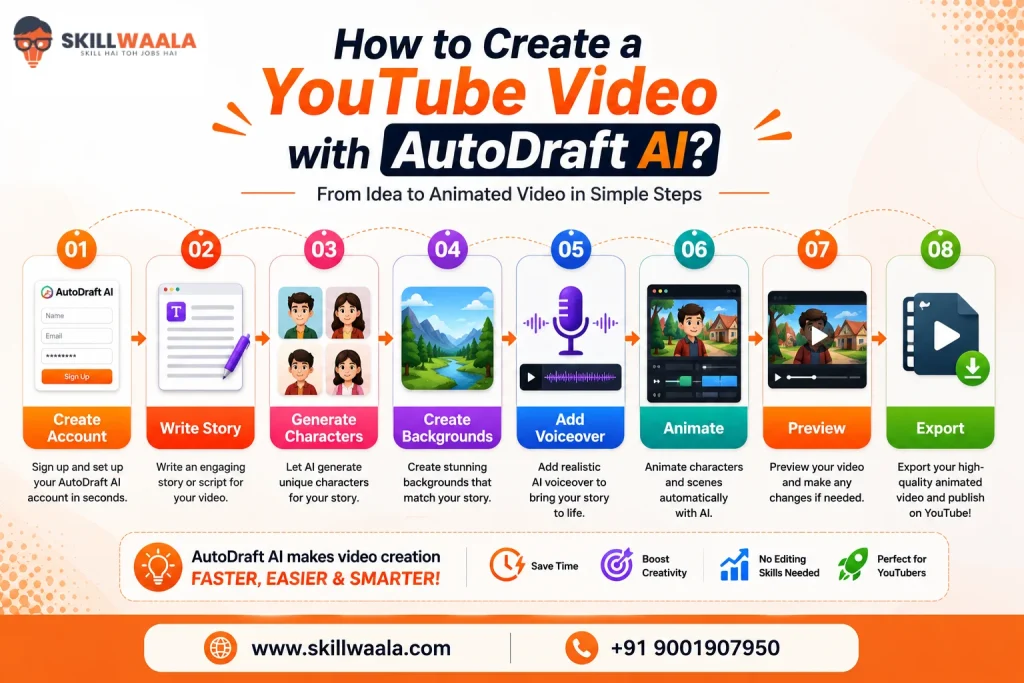
The easiest way to understand AutoDraft AI for YouTube is to look at the complete workflow. You don’t generate a finished animated video with one prompt. Instead, you build it scene by scene, which gives you considerably more control over the final result.
Here’s a simple AutoDraft AI tutorial for creating your first video.
Step 1: Create Your AutoDraft AI Account
Start by creating an account and opening AutoDraft Studio. Before generating anything, decide your video format, visual style, and basic story idea. Having these figured out beforehand saves credits you might otherwise waste experimenting.
Create Account > Open Studio > Start a Project
Step 2: Write Your Story and Script
Next, prepare the story you want to animate. Break the script into individual scenes rather than treating the entire video as one long block. For example, a horror story could become:
- Scene 1: Character arrives at an abandoned house
- Scene 2: Character hears footsteps upstairs
- Scene 3: A shadow appears behind the door
This scene-first approach makes generating matching visuals much easier.
Step 3: Generate Your Characters
Now create the characters appearing in your story. Describe details such as age, clothing, hairstyle, expression, and visual style as precisely as possible. Once you get a character you like, reuse it.
I’d avoid regenerating the main character for every scene. Character consistency is one of AutoDraft AI’s useful features, so take advantage of it rather than relying on slightly different prompts each time.
Step 4: Generate the Backgrounds
Create backgrounds that match each scene and your chosen visual style. A bedtime story might need bedrooms, forests, or fantasy environments, while an educational video could use classrooms, laboratories, maps, or simpler illustrated settings.
Pro Tip: Keep recurring locations consistent too. Characters aren’t the only thing viewers notice changing unexpectedly.
Step 5: Add Voiceovers
Generate narration and character dialogue using AutoDraft AI voices. Assign separate voices when multiple characters are speaking and adjust elements such as pitch or speed where necessary.
Listen to the entire dialogue before moving ahead. Fixing an awkward pronunciation now is much easier than discovering it after rendering.
Step 6: Animate Your Scenes
Bring your characters, backgrounds, dialogue, music, and other assets into the animation editor. Add character actions, expressions, lip sync, transitions, and camera movements where appropriate. Don’t animate something just because the option exists.
A few deliberate movements usually look cleaner than having every character constantly moving, especially in story-based videos.
Step 7: Preview and Export
Watch the complete video before exporting. Look specifically for inconsistent characters, awkward pauses, voice pronunciation issues, sudden background changes, and scenes that stay static for too long. Once everything looks right, render and export your video in the resolution you need.
The complete workflow looks like this:
Create Account > Write Story > Generate Characters > Create Backgrounds > Add Voiceover > Animate > Preview > Export
AutoDraft AI Real Workflow Test: How Does It Perform?
Feature list can make almost any AI tool look impressive. But what actually matters is how those features fit together when you’re actually trying to finish a video. For a typical animated YouTube workflow, AutoDraft AI does best at reducing the number of separate tools you need.
Character creation, backgrounds, voices, and animation can all stay within the same project. The editor is fairly approachable too, although getting beyond basic animations takes some practice. Here’s how I’d rate the overall workflow:
| Area | Rating | My Take |
|---|---|---|
| Ease of Use | ⭐⭐⭐⭐☆ (4/5) | Beginner-friendly once you understand the workflow. |
| AI Character Generation | ⭐⭐⭐⭐⭐ (5/5) | One of the strongest features of the platform. |
| Character Consistency | ⭐⭐⭐⭐⭐ (5/5) | Particularly useful for recurring stories and series. |
| Animation Quality | ⭐⭐⭐⭐☆ (4/5) | Great for 2D YouTube content, though not studio-grade animation. |
| AI Voice Quality | ⭐⭐⭐⭐☆ (4/5) | Convenient and capable for narration and dialogue. |
| Rendering Workflow | ⭐⭐⭐⭐☆ (4/5) | Streamlined for consistent content production. |
| User Interface | ⭐⭐⭐⭐☆ (4/5) | Most core tools are easy to find and use. |
| Learning Curve | ⭐⭐⭐☆☆ (3/5) | Easy to get started, but advanced features require some experimentation. |
Your first project probably won’t look like the polished examples you see in demos. Getting consistent scenes, natural character movement, good pacing, and convincing voiceovers still depends on the choice you make. AutoDraft AI removes technical friction. But it does not remove the need to learn storytelling and editing.
What We Liked About AutoDraft AI and What Could Be Better?
After looking at the complete workflow, AutoDraft AI has a fairly clear identity. It works best when speed, consistency, and accessibility matter more than having extremely granular animation control. That creates some genuine advantages, but also a few limitations worth knowing before you spend money on it.
What AutoDraft AI Gets Right?
The learning barrier is relatively low. You don’t need to know character illustration or traditional animation before creating your first project. There’s still plenty to learn, but you can start producing something useful much faster than you could with professional animation software.
Character consistency is genuinely useful. This is probably the feature I’d value most for story-based YouTube channels. Being able to reuse recognizable characters across scenes makes episodic content much easier to produce.
Most of the workflow stays in one place. Characters, backgrounds, voices, music, lip sync, and animation don’t necessarily require six different subscriptions and a folder full of exported files. It suits repeatable YouTube production. Kids’ stories, horror stories, educational videos, explainers, and other faceless formats can benefit from a workflow you can reuse every week.
Where AutoDraft AI Falls Short?
Credits can influence how freely you experiment. With credit-based AI platforms, unsuccessful generations aren’t just annoying; they can consume part of your available usage. Planning characters and scenes before generating them becomes worthwhile.
Advanced features take some learning. Creating your first basic animation is one thing. Getting movements, expressions, timing, dialogue, and scene transitions to feel polished takes more experimentation.
It isn’t a replacement for professional animation software. AutoDraft AI makes 2D animation substantially more accessible, but that doesn’t mean it suddenly replaces tools built for complex 3D animation or detailed professional workflows.
AutoDraft AI Pricing: How Much Does It Cost?
AutoDraft AI uses a credit-based model, so I’d look at the included credits rather than judging a plan purely by its monthly price. Every character, background, or other AI generation can contribute to how quickly you work through your allowance. Based on AutoDraft’s published 2026 pricing information, the main plans are:
| Plan | Price | Credits | Best For |
|---|---|---|---|
| Starter | Free | 20 Credits | Testing the platform and exploring core features. |
| Base | ₹833/month | 1,000 Credits | Beginners and smaller animation projects. |
| Pro | ₹3,333/month | 4,000 Credits | Regular YouTube creators and professional content production. |
The free AutoDraft AI plan is useful for figuring out whether you like the workflow, but 20 credits won’t tell you much about what sustained YouTube production feels like.
For someone learning AI animation or making occasional videos, the ₹833 Base plan looks like the more sensible starting point.
The ₹3333 Pro Plan becomes easier to justify when animation is part of a regular publishing schedule, and the additional credits are actually being used.
Check current AutoDraft AI pricing
Who Should Use AutoDraft AI, and Who Should Skip It?
AutoDraft AI isn’t going to be the best animation tool for everyone. I see it as a shortcut into AI-assisted 2D animation rather than a replacement for professional animation software. Whether that shortcut is valuable depends heavily on what you’re trying to create.
AutoDraft AI is Best For
YouTube automation and faceless channels: AutoDraft makes sense when you want a repeatable workflow for turning scripts into animated videos without appealing on camera.
Story and kids’ channels: Character consistency, reusable backgrounds, voices, and lip sync fit naturally with episodic stories, bedtime content, nursery rhymes, and similar formats.
Teachers and educators: Animated explainers can make otherwise dry concepts easier to present. You also don’t need to learn traditional animation just to create a short visual lesson.
Freelancers and content agencies: If clients regularly need simple animated videos, explainers, or social content, having several production tools under one roof can speed things up.
Startups and small teams: AutoDraft can be useful for product explainers and educational marketing videos when hiring a dedicated animation team isn’t practical.
It’s also an interesting tool to learn if you’re building AI skills. You’re not just practicing prompt writing; you’re learning how AI-generated scripts, images, voices, and animation can fit into an actual content-production workflow.
AutoDraft AI May Not Be For You
Professional animators who want precise control over every movement will probably find AutoDraft restrictive. The same applies to experienced Blender users and creators focused primarily on sophisticated 3D animation.
I also wouldn’t choose it for AAA-quality animation or studio-grade motion graphics. Tools such as Blender, After Effects, or dedicated 3D pipelines offer substantially deeper control, although they demand far more technical skill.
AutoDraft AI vs Competitors: Which is Better?
AutoDraft AI isn’t automatically better than every alternative. Its strongest fit is character-driven 2D YouTube animation, while tools like Vyond, Animaker, Adobe Firefly, and Runway have somewhat different workflows.
| Tool | Best For | AI Generation | Learning Curve |
|---|---|---|---|
| AutoDraft AI | YouTube stories & 2D animation | Strong | Moderate |
| Animaker | Template-based explainers | Strong | Easy |
| Vyond | Business & training videos | Strong | Easy–Moderate |
| Adobe Animate CC | General creative generation | Excellent | Moderate |
| Runway | Cinematic AI video | Excellent | Moderate |
AutoDraft AI vs Animaker
I’d pick AutoDraft AI for character-driven storytelling and Animaker for quick, template-heavy explainers. Animaker has a larger ready-made asset ecosystem, while AutoDraft puts more emphasis on AI-generated characters and scenes.
AutoDraft AI vs Vyond
Vyond is better suited to corporate training, presentations, and business explainers. AutoDraft feels more natural for animated YouTube stories, kids’ content, and faceless channels.
AutoDraft AI vs Adobe Animate CC
Firefly is a broader generative creative platform rather than a dedicated character-animation workflow. Choose Adobe Animate CC for flexible image and video generation; choose AutoDraft when you want to assemble recurring characters, voices, backgrounds, and animation in one place.
If you want to see a detailed comparison, you can check out our detailed tutorial comparing AutoDraft and Adobe Animate CC.
AutoDraft AI vs Runway
Runway is considerably stronger for cinematic generative video and experimental visuals. AutoDraft gives you more of a structured 2D storytelling workflow.
Best YouTube Niches for AutoDraft AI
AutoDraft AI makes the most sense for niches where characters, narration, and repeatable visual styles matter. You don’t necessarily need to show your face or film original footage, which opens up several channel formats.
Some of the strongest fits are:
- Horror Stories: Recurring characters, dark backgrounds, narration, and atmospheric music.
- Kids & bedtime stories: Colorful characters and consistent story worlds work particularly well.
- Mythology: Useful for visually retelling stories that would otherwise require considerable illustration work.
- History & facts: Turn narration into visual scenes rather than relying entirely on stick footage.
- Motivational content: Combine voiceovers with simple animated storytelling.
- Educational videos: Explain concepts through characters, scenes, and visual examples.
- Nursery rhymes: Character animation, music, voices, and lip sync can all be part of the same workflow.
- Animated explainers: A practical option for breaking complicated topics into simpler visual stories.
I’d especially consider AutoDraft as an AI tool for faceless YouTube channels built around storytelling. The more often you can reuse characters and visual styles, the more valuable its workflow becomes.
Is AutoDraft AI Good for YouTube Monetization?
Yes, videos created with AutoDraft AI can be monetized on YouTube, provided your channel meets YouTube Partner Program policies. Using AI itself doesn’t make a video ineligible for monetization.
YouTube has also specifically clarified that creators can use AI to enhance storytelling and still monetize their channels. (Source)
The bigger risk is mass production. YouTube’s current “inauthentic content” policy targets repetitive, template-based, or mass-produced videos that provide little original value. That includes AI-generated videos where scripts, visuals, and storylines barely change between uploads.
So I’d use AutoDraft to speed up production, not automate creativity. Write original stories, customize scenes, manually polish the edit, and give each video a reason to exist.
There’s also AI disclosure to consider. YouTube requires disclosure for realistic content that has been meaningfully generated or altered with AI. Non-realistic animated content generally doesn’t require the same disclosure, although other AI-generated elements may. Importantly, disclosure itself doesn’t hurt monetization eligibility.
AutoDraft can help you publish faster. It shouldn’t make every video look like it came from the same prompt.
Final Verdict: AutoDraft AI Review 2026
After looking at the full workflow, I think AutoDraft AI is strongest when you treat it as a YouTube animation production tool rather than a one-click video generator. Its character consistency, built-in voices, backgrounds, and animation workflow make it particularly useful for creators who want to produce 2D content regularly.
| Category | Score |
|---|---|
| Features | 9/10 |
| Ease of Use | 9/10 |
| Pricing | 8.5/10 |
| Animation | 8.5/10 |
| AI Voice | 9/10 |
| Value for Money | 9/10 |
Overall Rating: 4.5/5
I’d recommend AutoDraft AI for animated stories, kids’ content, educational videos, explainers, and faceless YouTube channels. If you need advanced 3D animation or studio-level control, tools such as Blender will still make more sense.
For everyone else, the free plan is the obvious place to start. Test one complete video workflow before deciding whether the paid credits actually save you enough time to justify the subscription.
Frequently Asked Questions (FAQs)
Yes. AutoDraft AI offers a free plan with limited credits, making it useful for testing the platform before paying.
It can be, especially for creators making animated stories, educational videos, explainers, or faceless YouTube content regularly.
Ans. Yes. You can create characters, backgrounds, voiceovers, animators, and other elements needed for YouTube videos within the platform.
Yes, AutoDraft AI supports exporting finished animations in up to 4K resolution.
Yes. Its character consistency, animation, voiceover, and background-generation features make it particularly suitable for animated kids’ stories and nursery content.
Yes. You don’t need traditional drawing or animation experience, although learning the more advanced editing controls takes some patience.
Yes, provided your videos meet YouTube’s monetization policies and offer sufficient original value.
Yes. AutoDraft AI supports mobile access, although desktop is generally more convenient for detailed animation editing.
About The Author