
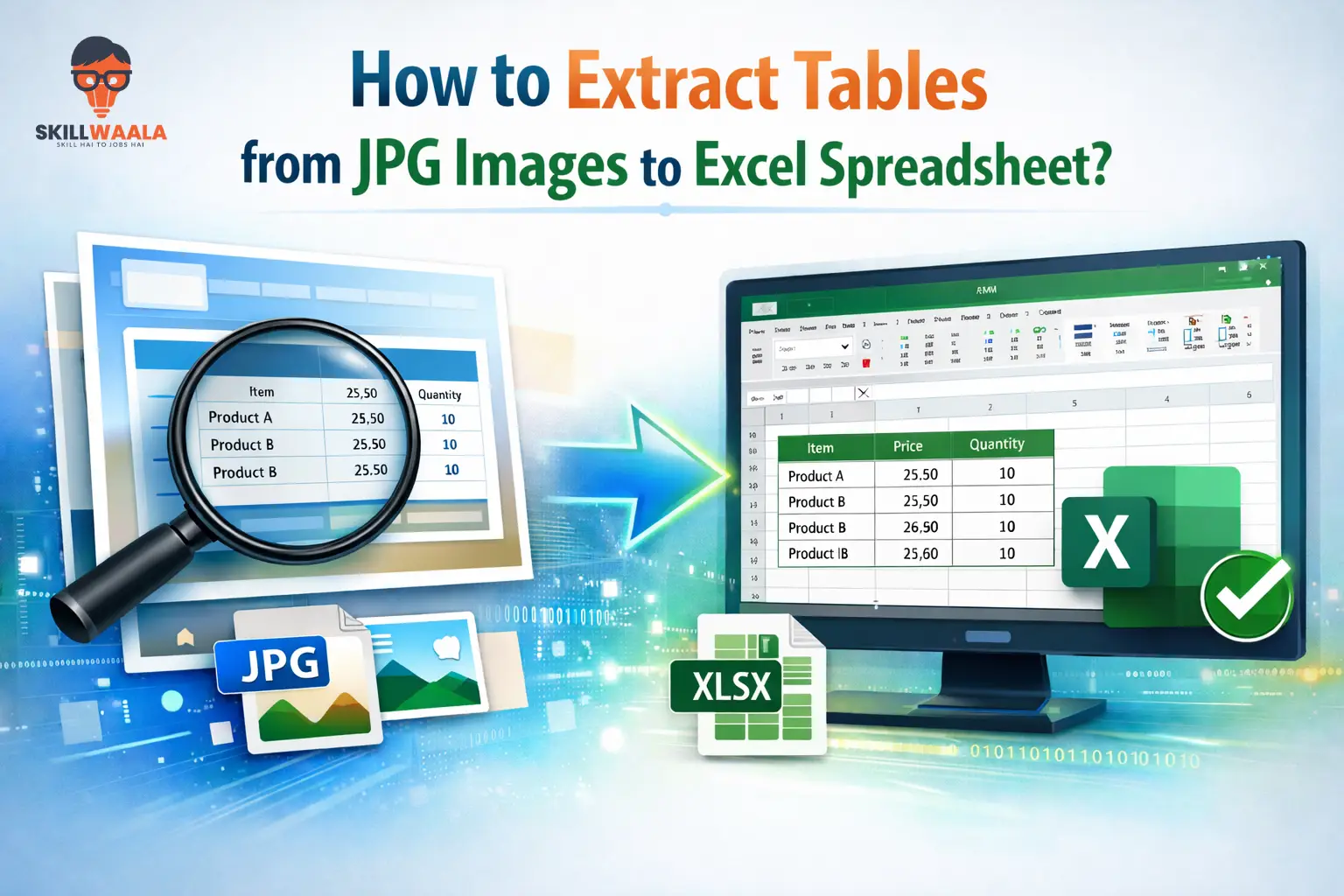
Data management is often known as the core of professional activities. Almost every task, like planning, reporting, or decision-making, depends on how the information is collected and organized. Among these frequently shared files, images containing tabular data are very common.
JPG files are quite common among users to share reports, records, or summaries. This format works well for viewing the information instantly. However, it is not so practical when the tabular data needs to be copied or edited.
To edit reports, perform calculations, or analyze the data efficiently, the tables in JPG images need to be in an editable format, such as an Excel spreadsheet. This makes the tabular data editable, reusable, and shareable.
But how can you quickly convert JPG images into Excel spreadsheets? This is what I’ll help you learn in this blog. I’ll share two of the most common and easy methods to quickly extract tables from images.
Methods to Quickly Extract Tables from JPG Images
The following are two simple yet practical methods to convert JPG to Excel spreadsheets:
Method 1 – Convert JPG Tables Using Excel
This is a built-in method available in Excel. It allows users to extract data directly from images through the “Data from Picture” feature. But this option is not available on older Excel versions. It is accessible in Microsoft 365 Excel, which is an online version. It is also available for Windows and Mac, requiring version 2210 or higher. It is not available in perpetual license versions like Excel 2021, 2019, or 2016 or older.
To use this feature in Microsoft 365 Excel, you need to follow the following steps
- Open your web browser and search for Microsoft 365, and click on it from the search results
- Complete the signup process
- After that, scroll a bit and locate the 365 Excel and create a new blank workspace
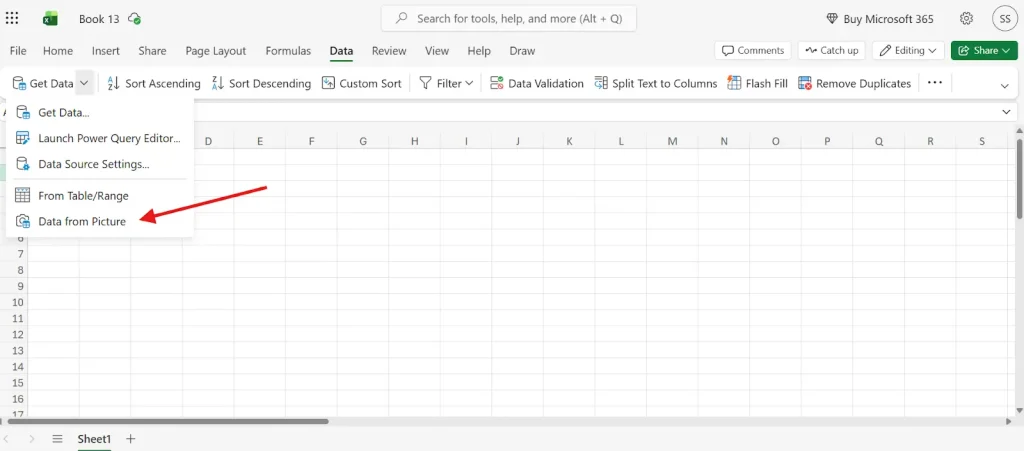
- Click on “Data” from the top menu. A new toolbar will appear below it. From the left side of that toolbar, click “Get Data”. Next, open the dropdown menu and select “Data from Picture” as shown below.
Now, upload the image containing tabular data.
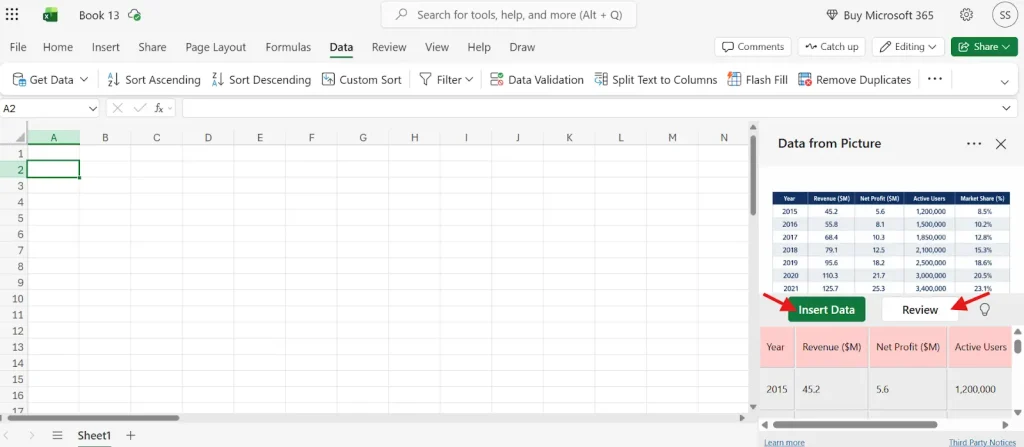
Once you upload your image, it gives you the option to review the detected data. You can click on the “Review” button to edit the data (if it requires any changes) as shown in the screenshot above. Once you are sure that the details are correct, hit the “Insert Data” button.
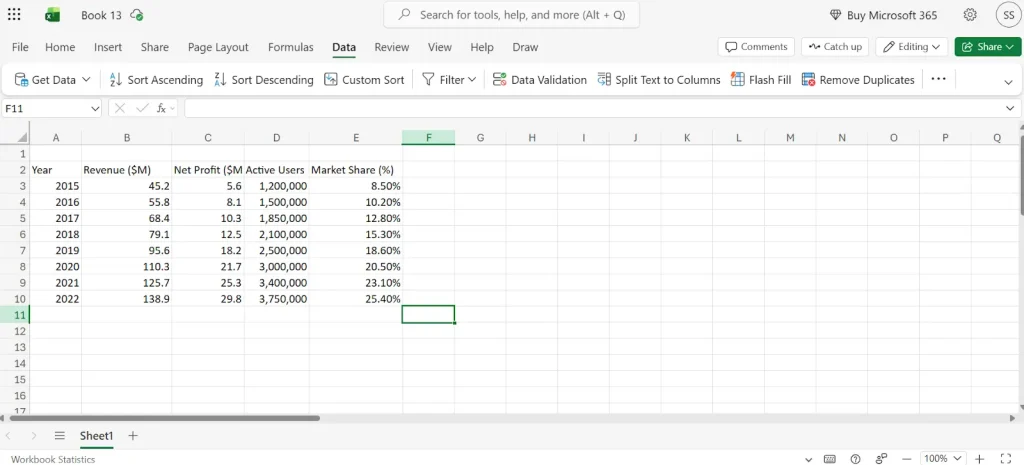
The image above shows the data extracted. This is how you can use this Microsoft 365 Excel to import data from JPG to Excel. This method works quite well for extracting tables with clear borders.
However, it may not be so effective if the boundaries are not clear or if the image is blurry. In these cases, you can utilize online OCR tools, which are powerful enough to extract tabular data even from low-quality images with irregular layouts.
But minor manual adjustments may still be required in some cases. Let’s discuss another method involving the use of such a tool.
Method 2 – Convert JPG Tables Using an Online OCR Tool
This method involves using an image to Excel converter. The process is simple and quick. You don’t need to download anything or go through any account registration process.
The tool uses OCR (Optical Character Recognition) technology to extract text and tables directly from images and convert them into editable formats.
To access such a tool, search for a JPG to Excel converter on your web browser. Select a relevant tool from the search results.
For demonstration, I’ve selected the JPG to Excel converter that I found reliable and consistent during my testing. It also doesn’t require you to pay anything or sign up.
- Open the tool and click on the “Browse” button to upload the image directly from your local drive. You can also paste the URL of your file into the tool.
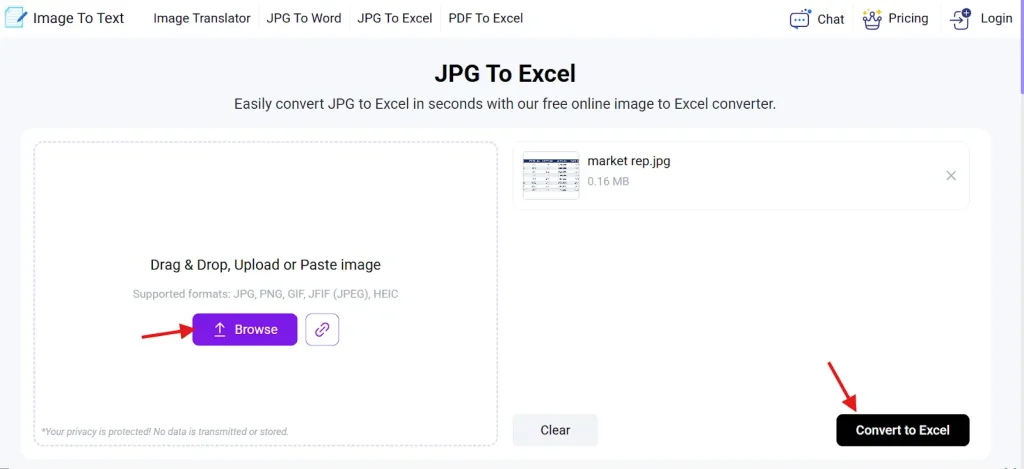
- Once you upload your image, the tool gives you the option “Convert to Excel” as shown in the above image. Click on it and get your tabular data converted into Excel.
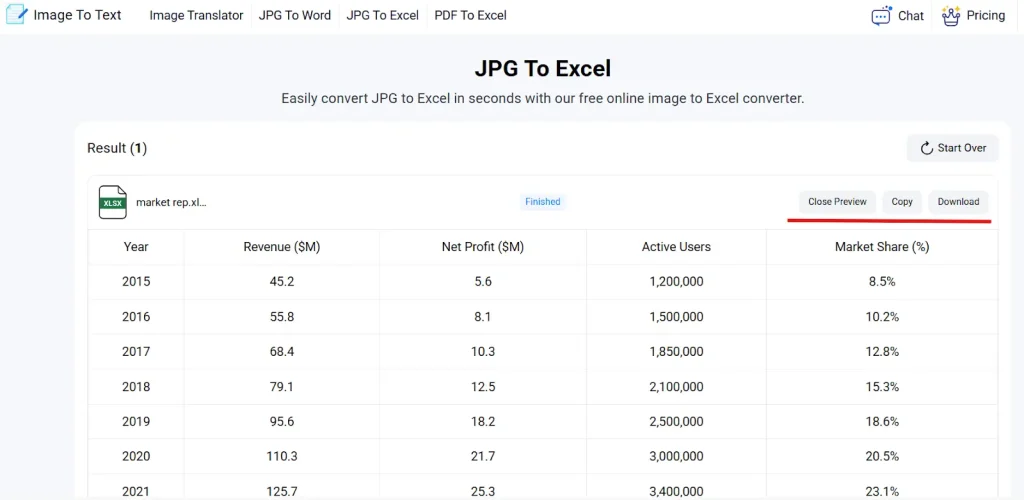
The tool takes a few seconds and converts the structured data into Excel as shown in the screenshot above. It then gives the option to preview data, in which you can perform any edits if required. Once you are sure that the details are accurate, you can copy or download this editable XLS file.
This is how you can extract tables from JPG images using an OCR tool. Some users may find this method convenient compared to method one. This is because it doesn’t require signing up or going through multiple menus to locate the feature for extracting data. It also works well for those who don’t have access to the latest Excel versions.

Summing Up
A large portion of data is shared in the form of JPG images, especially when information is captured through screenshots, scans, or shared documents. While these images are easy to view and share, they make it difficult to edit or reuse the data. However, converting tabular data from JPG images into Excel spreadsheets allows the information to be edited, calculated, and organized in a way that supports practical use.
To convert such tabular data into Excel, I’ve explained two easy methods. One talks about using the Microsoft 365 Excel, while the second one involves using an online OCR tool. Select the method that suits you best and convert your JPG tables into editable Excel spreadsheets to simplify your data work.
About The Author