

I’ve spent enough time working with spreadsheets to know that data analysis can get messy fast. Cleaning columns, finding patterns, checking formulas, and turning raw numbers into something useful can easily eat up hours.
That’s where AI for data analysis has changed the workflow for me. Instead of treating AI as a shortcut for every calculation, I use it to explore datasets, spot patterns, explain trends, and decide where deeper analysis is actually needed.
I tested the top 10 data analysis AI tools to see which ones are genuinely useful for everyday work and learning. Some are great with spreadsheets, others handle larger datasets or visualizations better.
I have covered the tools worth knowing, what each one excels in, and where it fits into a practical data analysis with AI workflow.
What to Look for in an AI Data Analysis Tool?
The best AI for data analysis tool depends on the kind of data you work with and what you want to achieve. Before picking one, run through this quick checklist:
- File Support: Can it handle Excel, CSV, Google Sheets, PDFs, or databases?
- Data Cleaning: Can it identify duplicates, missing values, and formatting issues?
- Analysis: Can it calculate trends, correlations, and useful patterns?
- Visualization: Does it create charts and dashboards you can actually use?
- Natural-language Prompts: Can you ask questions about your data without writing complex formulas or code?
- Accuracy: Can you verify its calculations and see how it reached an answer?
- Skill Requirements: Does it require Python, SQL, or advanced analytics knowledge?
- Pricing: Is the free plan enough for learning and occasional projects?
Quick Comparison: 10 Best AI Data Analysis Tools
Before getting into the individual tools, here’s a quick overview of each tool.
| Tool | Best For | Data Sources | Coding Needed? | Free Option |
|---|---|---|---|---|
| ChatGPT | General-purpose analysis | CSV, Excel, PDFs, images | No | Yes |
| Julius AI | Conversational data analysis | CSV, Excel, Google Sheets | No | Limited |
| Microsoft Copilot in Excel | Spreadsheet analysis | Excel | No | Limited |
| Gemini in Google Sheets | Google Workspace workflows | Google Sheets | No | Yes |
| Claude | Data exploration and reasoning | CSV, Excel, documents | No | Yes |
| DataLab | Data science and notebooks | CSV, Excel, databases | Optional | Yes |
| Akkio | Predictive analytics | Spreadsheets, databases | No | Trial |
| Rows AI | AI-powered spreadsheets | Spreadsheets, CSV | No | Yes |
| Power BI Copilot | Business intelligence | Power BI datasets | Optional | Requires eligible plan |
| Tableau AI | Visualization and BI | Tableau data sources | Optional | Requires eligible plan |
1. ChatGPT: Best for General-Purpose Data Analysis

ChatGPT is one of the most flexible data analysis AI tools for working with datasets without writing Python or SQL from scratch. You can upload CSV or Excel files, ask questions in plain English, explore patterns, create visualizations, and get explanations of the results. It’s also useful while learning because you can ask follow-up questions instead of figuring everything out on your own.
Features of ChatGPT
- CSV and Excel file analysis
- Data cleaning and organization
- Interactive charts and visualizations
- Trend and pattern identification
- Statistical calculations
- Outlier detection
- Python-assisted data analysis
- Natural-language queries
Pricing: ChatGPT has a Free plan, while Paid plans start at $8/month for Go, $20/month for Plus, and $100/month for Pro.
My Verdict: I’d start here if you’re still figuring out where AI fits into your workflow. It handles everyday analysis well without forcing you into a dedicated analytics platform.
2. Julius AI: Best for Conversational Data Analysis

Julius AI is built specifically around asking questions about data in plain English. You can upload spreadsheets, connect data sources, and ask it to analyze, clean, visualize, or model the information without writing the analysis code yourself.
It’s particularly useful when you want to move from a raw spreadsheet to charts, statistical analysis, or forecasts without jumping between multiple applications.
Features of Julius AI
- CSV and Excel analysis
- Google Sheets integration
- Natural-language data queries
- Automated data cleaning
- Data visualizations
- Statistical analysis and modelling
- Predictive forecasting
- Machine learning through natural-language prompts
- Multi-sheet spreadsheet analysis
- Python and R code generation
- Data export to CSV and Excel
Pricing: Free plan available with 5 messages per month. Plus costs $20/month and includes 2,000 monthly credits. Pro costs $45/month with 4,500 monthly credits, while Business costs $450/month with 45,000 monthly credits.
My Verdict: Julius is worth considering if your work revolves heavily around spreadsheets and statistical analysis. Its natural-language workflow feels closer to having a data analyst explain the numbers than using a traditional spreadsheet tool.
3. Microsoft Copilot in Excel: Best for Spreadsheet Analysis

If most of your data already lives in Excel, Copilot saves you from moving it into a separate AI for data analysis platform. It can work directly inside the workbook, helping analyze data, generate formulas, create charts and PivotTables, and make structured changes.
Features of Microsoft Copilot
- Natural-language data analysis
- Formula generation and explanation
- Data cleaning and transformation
- Charts and PivotTables
- Sorting, filtering, and highlighting
- Trend identification
- Workbook editing
- Plan, chat, and edit modes
- AI-assisted financial analysis and modelling
Pricing: Excel is available for free on the web with limited functionality. Microsoft 365 Personal costs ₹689/month or ₹6,899/year in India and includes Copilot in Excel. Microsoft 365 Family costs ₹819/month or ₹8,199/year
My Verdict: If Excel is already part of your daily workflow, this is one of the most practical ways to start using data analysis with AI without changing your entire process.
4. Google Gemini in Google Sheets: Best for AI-Powered Spreadsheet Analysis
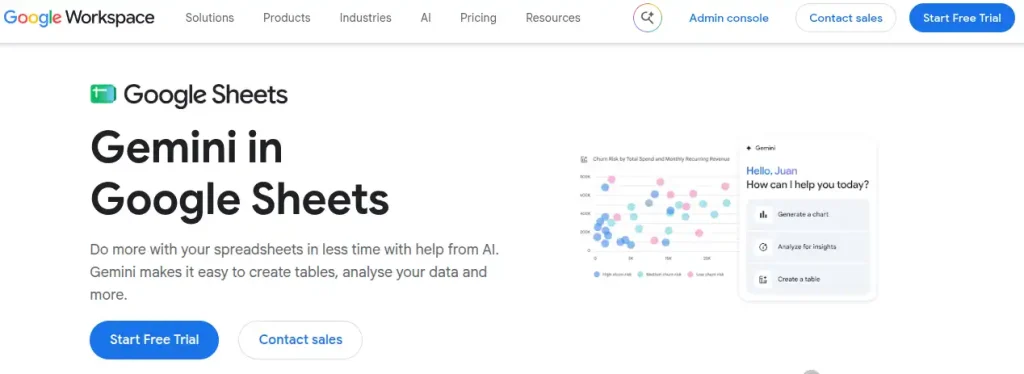
If most of your work happens in Google Sheets, Gemini keeps data analysis with AI inside the spreadsheet instead of sending you to another platform. It can analyze data, identify trends and outliers, create charts, generate formulas, and handle formatting tasks through natural-language prompts.
Features of Google Gemini
- Natural-language data analysis
- Formula generation
- Trend and outlier detection
- Charts and graphs
- Pivot table creation
- Data cleaning and formatting
- AI-powered data categorization
- Smart Fill for pattern-based data entry
- Conditional formatting
- Large dataset analysis
Pricing: Gemini in Sheets requires an eligible Google Workspace or Google AI plan. Google AI Plus costs ₹399/month. Google AI Pro costs ₹1,950/month in India.
My Verdict: This makes the most sense if Google Sheets is already part of your daily workflow. You don’t have to learn a separate analytics interface just to start experimenting with AI.
5. Claude: Best for Complex Data Reasoning
Claude is useful when your analysis involves more than calculating numbers. It can work with files, interpret tables and charts, reason through findings, and help turn raw analysis into a clear explanation. Anthropic also offers Claude in Excel, where eligible users can analyze and modify workbooks directly.
Features of Claude
- File and spreadsheet analysis
- Data interpretation and summarization
- Chart and table analysis
- Natural-language data queries
- Advanced reasoning
- Python and code-assisted analysis
- Excel integration
- Long-context document analysis
- Data visualization support
Pricing: Claude has a free plan. The Pro plan costs $20/month or $200/year. Max plans start at $100/month, with a higher tier at $200/month. Team and Enterprise pricing is available separately.
My Verdict: Claude is a great AI tool when the analysis needs interpretation rather than just number crunching. I’d especially consider it for research-heavy work.
6. DataLab: Best for AI-Assisted Data Science

DataLab combines an AI assistant with a full data notebook, so you can ask questions about your data and then inspect the Python or SQL generated behind the analysis. It supports files, Google Sheets, databases, and data warehouses.
Features of DataLab
- AI-assisted data exploration
- CSV and Excel file support
- Google Sheets integration
- SQL and Python support
- AI-generated visualizations
- Data cleaning and manipulation
- Database and data warehouse connections
- Code you can review, edit, and rerun
- Collaborative notebooks
- Automated reports and scheduled workflows
Pricing: DataLab has a Free plan with up to 3 workbooks and 15 AI prompts. Its Premium plan provides unlimited workbooks and AI prompts and is priced at $8/month when billed annually.
My Verdict: DataLab is a good step up when you’re ready to understand what happens behind an AI-generated analysis. Being able to inspect and modify the underlying code is particularly useful when you’re building real data skills rather than relying entirely on AI-generated answers.
7. Akkio: Best for Predictive Analytics

Akkio is built around turning existing business data into predictions and insights without requiring a traditional data-science workflow. You can chat with datasets, clean and merge data, create predictive models, and generate reports from the same platform.
Features of Akkio
- Natural-language data exploration
- AI-assisted data cleaning
- Dataset merging and transformation
- Predictive modelling
- Sales and revenue forecasting
- Customer segmentation
- Automated reports and dashboards
- No-code machine learning
- API and workflow integrations
- Multiple data visualization options
Pricing: Akkio’s current pricing is custom, with plans based on business requirements.
My Verdict: Akkio becomes more interesting once your analysis moves beyond “What happened?” to “What might happen next?” Its predictive modelling and forecasting features make it better suited to business use cases than basic spreadsheet analysis.
8. Quadratic: Best for AI-Powered Spreadsheet Analysis

Quadratic takes the familiar spreadsheet format and adds AI, Python, SQL, and live data connections. You can import CSV, Excel, and PDF files, ask questions in plain English, and inspect the formulas or code behind the analysis
Features of Quadratic
- AI-assisted data analysis
- CSV, Excel, PDF, and Parquet support
- Natural-language prompts
- Built-in Python and SQL
- AI-generated formulas and charts
- Live database connections
- Data cleaning and transformation
- Predictive and statistical analysis
- Support for datasets up to 100 million rows
- AI-generated code that can be reviewed and edited
Pricing: Quadratic has a Free plan with limited AI usage. The Pro plan costs $18/user/month when billed annually and includes $20 in monthly AI credits. The Business plan costs $36/user/month when billed annually and includes $40 in monthly AI credits.
My Verdict: Quadratic is particularly interesting if you want to learn data analysis with AI without giving up visibility into the underlying work. You can start with natural-language prompts and gradually inspect the Python, SQL, and formulas that AI generates.
9. Microsoft Power BI Copilot: Best for Business Intelligence

Power BI Copilot brings generative AI into a more traditional business intelligence workflow. It can answer questions about your data, summarize reports, generate DAX queries, and help create or work with reports and semantic models.
Features of Microsoft Power BI Copilot
- Natural-language data queries
- AI-generated report summaries
- DAX query generation
- AI-assisted report creation
- Semantic model assistance
- Automated insights and visuals
- Chat with report data
- Power BI Desktop integration
- Power BI Mobile support
Pricing: Power BI has a Free account. Power BI Pro costs ₹1,165/user/month when paid annually. Power BI Premium Per User costs ₹1,995/user/month, with GST extra.
My Verdict: Power BI Copilot makes the most sense when your goal goes beyond analyzing a spreadsheet and moves into dashboards, business reporting, and recurring data workflows. It has a steeper learning curve than tools such as ChatGPT, but there’s much more structure behind the analysis.
10. Tableau AI: Best for AI-Powered Data Visualization

Tableau is a strong option when the goal is to turn complex datasets into dashboards, visualizations, and business insights. Its Tableau Agent lets you interact with data using natural-language prompts, suggest analytical questions, build visualizations, and explore patterns conversationally.
Features of Tableau AI
- Natural-language data exploration
- AI-assisted visualization creation
- Automated insights with Tableau Pulse
- Interactive dashboards
- Data preparation and transformation
- Conversational analytics
- AI-assisted calculations
- Multiple-data source connections
- Multiple data-source connections
- Tableau Agent for analysis and visualization
Pricing: Tableau Cloud Standard starts at $15/user/month, billed annually. Enterprise starts at $35/user/month. The role-based Standard licenses are $75/month for Creator, $42/month for Explorer, and $15/month for Viewer, when billed annually.
My Verdict: Tableau is worth considering when visual storytelling matters as much as the analysis itself. It has a steeper learning curve than ChatGPT or spreadsheet-focused tools, but it becomes much more useful when you’re working with dashboards and recurring business reports.
Want to Explore More AI Tools for Spreadsheets?
Check out our detailed guide to the Top 10 AI Tools for Excel & Google Sheets and find the right tools for analysis, formulas, automation, and more.
Explore Top 10 AI Tools for ExcelFinal Words
AI has made data analysis far more approachable, but it hasn’t removed the need to understand the numbers. The useful part is knowing where to let AI handle the repetitive work and where you need to step in and verify the result.
For quick spreadsheet analysis, AI tools like ChatGPT, Julius AI, and Gemini are practical starting points. If you’re moving into business intelligence, Power BI and Tableau offer a more structured workflow. For deeper technical learning, DataLab and Quadratic give you more visibility into the code behind the analysis.
I’d recommend testing one tool with a real dataset from your own work or learning project. That’s a much better way to judge an AI data analysis tool than comparing feature lists.
Frequently Asked Questions (FAQs)
AI for data analysis uses artificial intelligence ot help examine datasets, identify patterns, create visualizations, detect anomalies, and explain findings. Tools such as ChatGPT can also run calculations and statistical analysis on uploaded datasets.
There is no single tool that fits every workflow. ChatGPT works well for general-purpose analysis, Julius AI focuses on conversational data exploration, while Power BI and Tableau are better suited to structured business intelligence workflows.
Several tools let you upload a spreadsheet and ask questions using natural language. You can start without coding and gradually learn Python, SQL, or statistical methods as your analysis becomes more advanced.
Yes. Many current AI data analysis tools support common spreadsheet formats such as CSV and Excel. For example, ChatGPT can analyze uploaded .csv and .xlsx files, create charts, and perform Python-based calculations.
AI can make mistakes, so important calculations should be checked before you use them for business, academic, or financial decisions. Reviewing the formulas, code, assumptions, filters, and source data is particularly important when the result has real-world consequences.
AI can handle many repetitive parts of analysis, but it doesn’t remove the need for human judgment. Defining the right question, checking data quality, choosing appropriate methods, validating results, and explaining what the findings mean still require analytical thinking.
About The Author