

Spreadsheets rarely take hours because of the actual analysis. The time usually disappears into formulas, data cleaning, formatting, repetitive calculations, and fixing small errors. That’s where AI tools for Excel and Google Sheets can make a real difference. I have tested 10 best AI tools that generate formulas, analyze datasets, automate repetitive work, and help turn messy spreadsheets into usable reports. But not every tool deserves a place in your workflow.
Top 10 AI Tools for Excel & Google Sheets: Quick Comparison
| AI Tool | Best For | Excel | Google Sheets | Free Plan |
|---|---|---|---|---|
| ChatGPT for Excel & Google Sheets | Spreadsheet analysis & complex tasks | Yes | Yes | Yes |
| Microsoft Copilot in Excel | Native Excel workflows | Yes | No | N/A |
| Gemini in Google Sheets | Native Google Sheets workflows | No | Yes | N/A |
| GPT for Work | Bulk data processing & automation | Yes | Yes | N/A |
| Claude for Excel | Advanced Excel analysis | Yes | No | Yes* |
| GPTExcel | Formulas, charts & data analysis | Yes | Yes | Yes |
| Coefficient | Data connections & spreadsheet automation | Yes | Yes | Yes |
| Numerous.ai | Bulk AI operations | Yes | Yes | Yes |
| Ajelix | Excel/Sheets AI toolkit | Yes | Yes | Yes |
| Better Analyst | Data analysis & dashboards | Yes | Yes | Yes |
1. ChatGPT For Excel & Google Sheets
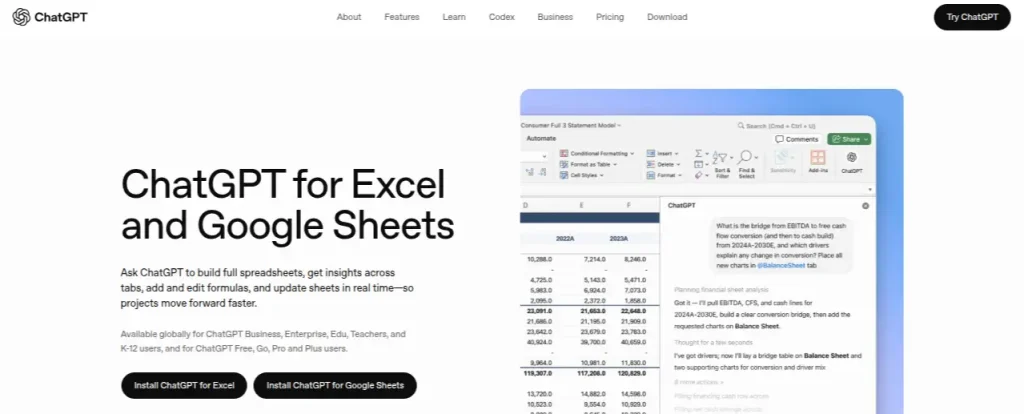
Best For: General spreadsheet analysis and complex data tasks
ChatGPT now works directly with Excel and Google Sheets, so you can ask it to analyze workbooks, create or fix formulas, clean data, and make changes using natural-language instructions. It’s particularly useful when the task goes beyond writing one formula, and you need help understanding or restructuring a spreadsheet.
Key Features of ChatGPT for Excel
- Generate and debug formulas
- Analyze and clean spreadsheet data
- Modify workbooks and tables
- Ask questions about your data
- Build and update spreadsheet models
Pricing: Available with eligible ChatGPT plans (Free, Go, Plus, Pro, Business, and Enterprise)
My Verdict: This is the most versatile option on the list if you want AI to handle different kinds of spreadsheet work rather than relying on a dedicated formula generator.
2. Microsoft Copilot in Excel
Best for: Working with data directly inside Microsoft Excel
Copilot is a natural fit if Excel is already part of your workflow. You can use it to generate formulas, summarize tables, spot trends, create charts, and ask questions about your spreadsheet without moving the data into another AI app.
Key Features of Microsoft Copilot
- Generate and explain formulas
- Analyze and summarize datasets
- Identify trends and patterns
- Create charts and visualizations
- Ask questions about spreadsheet data
Pricing: Microsoft 365 Personal: ₹689/month or ₹6,899/year. Microsoft 365 Family: ₹819/month or ₹8,199/year
My Verdict: Copilot makes the most sense when you already work in Excel. It feels less useful if you only need occasional formula help and don’t otherwise use Microsoft 365.
3. Gemini in Google Sheets
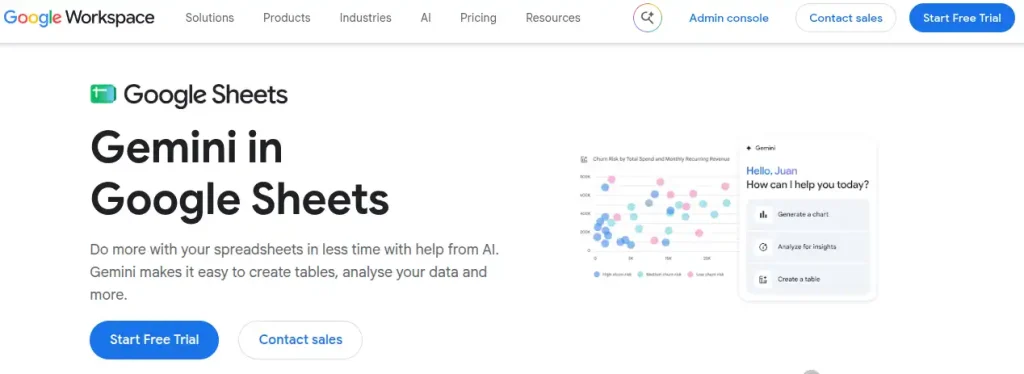
Best For: Building, analyzing, and editing spreadsheets with AI
Gemini is built directly into Google Sheets and can handle much more than formula suggestions. You can ask it to create tables, generate formulas, analyze data, build charts, apply formatting, create pivot tables, and even make changes across an existing sheet.
There’s also an AI function that can generate, summarize, categorize, and analyze information directly inside cells.
Key Features of Google Gemini
- Generate formulas and tables
- Analyze spreadsheet data
- Create charts and pivot tables
- Clean and format data
- Use =AI() or =Gemini() functions
Pricing: Google Workspace Business Standard starts at ₹1,040/user/month on the flexible monthly plan, with Gemini in Sheets included. Annual pricing starts at ₹864/user/month.
My Verdict: If most of your work happens in Google Sheets, this is one of the most natural ways to bring AI for spreadsheets into your existing workflow.
4. GPT for Work
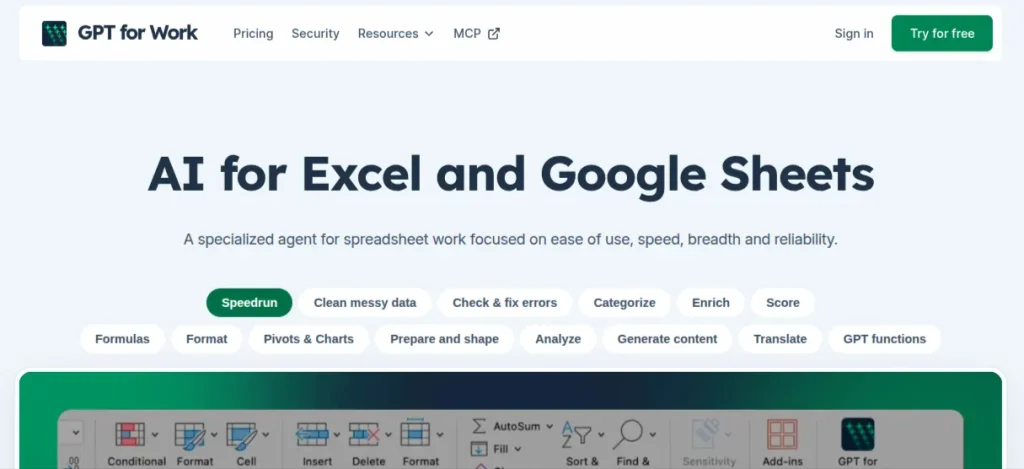
Best For: Automating repetitive spreadsheet tasks
GPT for Work brings AI directly into Excel and Google Sheets, where it can process large amounts of spreadsheet data without requiring you to manually copy everything into a chatbot. It’s useful for tasks such as categorizing rows, extracting information, rewriting text, and generating formulas across multiple cells
Key Features of GPT for Work
- AI formulas and data processing
- Bulk data classification
- Text extraction and transformation
- Spreadsheet automation
- Excel and Google Sheets integration
Pricing: Plans start at $20/month for individual users. Business pricing varies by workspace and usage.
My Verdict: GPT for Work is more interesting for repetitive spreadsheet operations than one-off formula generation. If you regularly clean, classify, or transform hundreds of rows, that distinction matters.
5. Claude for Excel

Best For: Complex Excel analysis and financial models
Claude for Excel works inside Excel and can inspect formulas, trace relationships between cells, analyze multiple sheets, and make changes while preserving the workbook’s existing structure. It’s aimed more at serious spreadsheet analysis than basic formula generation.
Key Features of Claude
- Analyze complex workbooks
- Understand formulas and cell relationships
- Update spreadsheet models
- Work across multiple sheets
- Explain calculations and assumptions
Pricing: Available with Claude Max ($100/month or $200/month), Team ($30/seat/month annually or $35/monthly), and Enterprise plans, subject to eligibility and current Claude for Excel access.
My Verdict: Claude is worth considering when the spreadsheet itself is complicated, and you need AI to reason through how different parts of the workbook connect. Its Excel integration is currently a beta/research preview, so availability is more limited than Copilot or Gemini.
6. GPTExcel
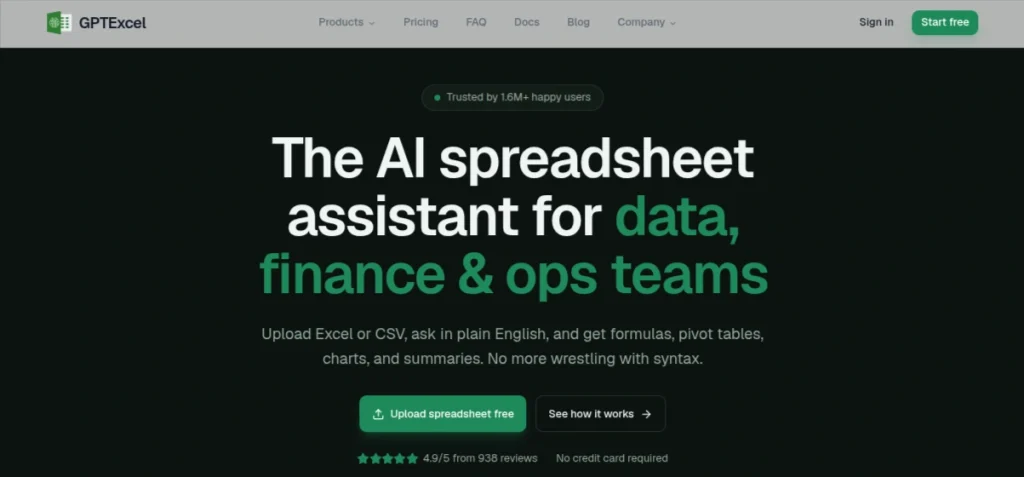
Best For: Creating formulas, analyzing data, and working with spreadsheet files
GPTExcel is a dedicated AI tool for Excel and Google Sheets that focuses heavily on spreadsheet-specific tasks. You can generate formulas from plain-English instructions, explain existing formulas, create VBA or Apps Script code, and analyze uploaded spreadsheet files.
Key Features of GPTExcel
- AI formula generation and explanation
- Excel and Google Sheets support
- VBA and Apps Script generation
- Spreadsheet data analysis
- SQL query generation
Pricing: Free plan available. Pro starts at $19.90/month. Max costs $29.90/month
My Verdict: GPTExcel is a good pick when your main problem is getting spreadsheet work done rather than having a general-purpose chatbot. The formula and scripting features are its strongest selling points.
7. Coefficient
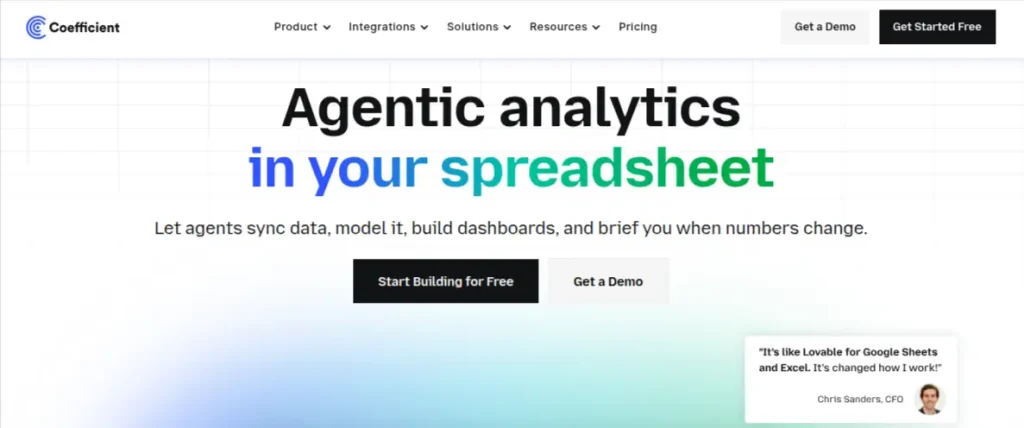
Best For: Connecting spreadsheets with live business data
Coefficient turns Excel and Google Sheets into a more connected data workspace. It can pull information from sources such as CRMs and databases into a spreadsheet, then use AI to help analyze the data, build reports, and answer questions about it
Key Features of Coefficient
- AI-powered data analysis
- Automated data imports and refreshes
- Spreadsheet dashboards
- Connections to business data sources
- Excel and Google Sheets support
Pricing: Free plan available. Starter is at $49/month. Pro starts at $99/user/month
My Take: Coefficient makes more sense for people working with recurring business reports than for someone who only needs help writing Excel formulas. Its real value comes from connecting data sources and keeping spreadsheet reporting updated.
8. Numerous.ai
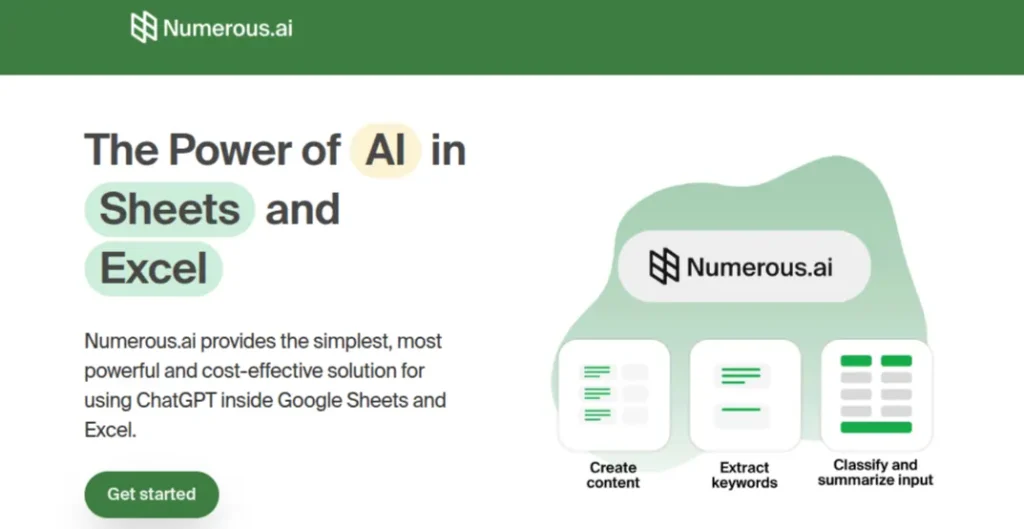
Best For: Processing and transforming large amounts of spreadsheet data
Numerous.ai brings AI functions directly into Excel and Google Sheets. You can use natural-language instructions to classify, extract, summarize, categorize, or rewrite information across large datasets instead of handling each row manually.
Key Features of Numerous.ai
- AI formulas for Excel and Google Sheets
- Data classification and extraction
- Text generation and rewriting
- Bulk data processing
- Custom AI prompts inside spreadsheets
Pricing: Free plan available. Paid plans start at $10/month when billed annually
My Verdict: Numerous.ai is particularly useful when a spreadsheet contains hundreds of rows of text that need the same kind of treatment. It’s less about building elaborate models and more about eliminating repetitive data work.
9. Ajelix
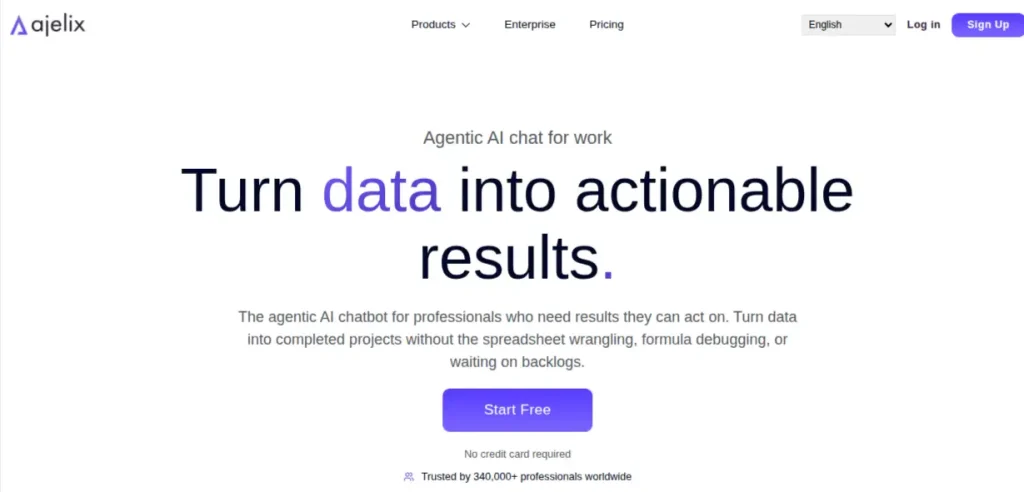
Best For: Excel and Google Sheets formulas, automation, and analysis
Ajelix bundles several AI tools for Excel and Google Sheets into one platform. You can generate and explain formulas, create VBA or Apps Script code, analyze spreadsheet data, and use AI to troubleshoot common spreadsheet problems.
Key Features of Ajelix
- AI formula generator and explainer
- VBA and Apps Script generation
- Spreadsheet data analysis
- Excel and Google Sheets support
- AI-powered spreadsheet templates
Pricing: Free plan available. Paid plans start at $10/month
My Verdict: Ajelix is useful if you want several spreadsheet-focused AI utilities under one roof. It’s particularly handy for users who know what they want to automate but don’t necessarily know the Excel formula or script required to do it.
10. Better Analyst
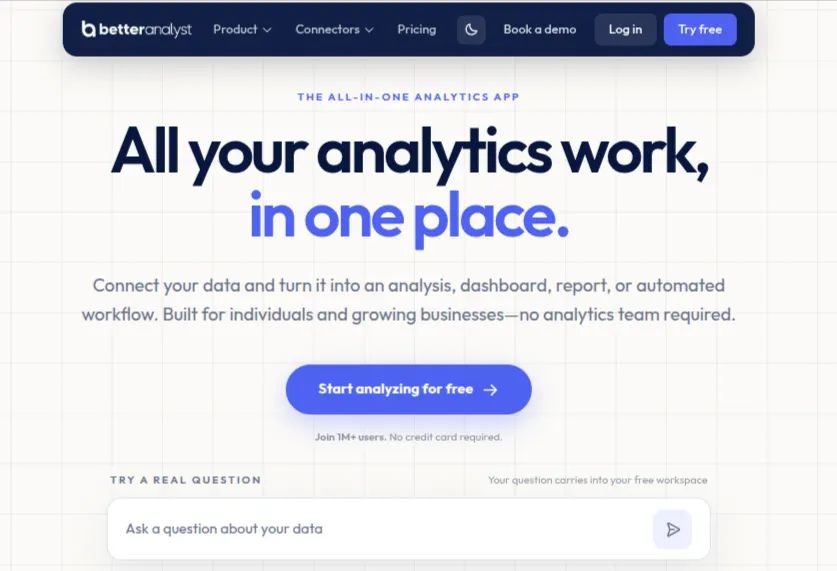
Best For: Asking questions about spreadsheet data in plain English
Better Analyst, formerly known as Formula Bot, focuses on turning spreadsheet data into answers, analysis, charts, and dashboards without requiring you to build every formula manually. You can upload or connect spreadsheet data and use natural-language prompts to explore it
Key Features of Better Analyst
- AI-powered spreadsheet analysis
- Natural-language data queries
- Automated charts and dashboards
- Data enrichment and transformation
- Excel and Google Sheets support
Pricing: Free plan available. Starter is $20/month. Max starts at $40/user/month
My Verdict: Ajelix is useful if you want several spreadsheet-focused AI utilities under one roof. It’s particularly handy for users who know what they want to automate but don’t necessarily know the Excel formula or script required to do it.
How to Choose the Best AI Tool for Excel or Google Sheets?
The best AI tools for Excel and Google Sheets depend less on the number of features and more on the type of spreadsheet work you actually do.
Before paying for an Excel AI tool, test it with a real spreadsheet task you regularly perform. A tool that saves you 30 minutes every week is far more useful than one with 50 features you never touch. Depending on your use case, you can use these tools:
- If you need formulas and quick fixes, try GPTExcel or Ajelix.
- If you work mainly in Excel, Microsoft Copilot or Claude are great options.
- If you work mainly in Google Sheets, Gemini is the obvious choice.
- If you need to process hundreds of rows, Numerous.ai or GPT for Work can save a lot of time.
- If you need dashboards and connected business data, Coefficient or Better Analyst are worth considering.
- If you need one flexible AI assistant for every task, ChatGPT for Excel is the best.
What Can AI Actually Do in Excel & Google Sheets?
AI in Excel has moved well beyond generating a SUM formula. The useful part is how it handles the repetitive work surrounding your data.
Generate and Fix Formulas
You can describe what you want in plain English and ask AI to build the formula. It can also explain an existing formula or help troubleshoot errors.
Clean and Organize Data
AI can identify consistent entries, categorize text, extract information, remove duplicates, and standardize messy datasets.
Analyze Data
Instead of manually filtering hundreds of rows, you can use AI to identify trends, summarize results, compare figures, or find unusual values.
Create Charts & Reports
Some AI tools for Google Sheets and Excel can turn raw data into charts, summaries, dashboards, and presentation-ready reports.
Automate Repetitive Tasks
Tasks such as updating formulas, processing rows, generating descriptions, or transforming data can be handled in bulk. This is where AI can save substantially more than using it for one-off formula questions.
AI Excel & Google Sheets Checklist
Before adding an AI tool to your spreadsheet workflow, run through this quick checklist:
- Check Compatibility: Does it work with your version of Excel or Google Sheets?
- Test it on Real Data: Use a small copy of an actual spreadsheet before committing to a tool.
- Verify Formulas: Check AI-generated formulas against your expected results.
- Review Bulk Changes: Scan a sample of rows before applying an AI action to an entire dataset.
- Check Pricing: Confirm whether the features you need are included in the free plan or require a paid subscription.
- Product Sensitive Data: Avoid uploading confidential financial, customer, employee, or business information unless the tool’s data policies meet your requirements.
- Measure the Time Saved: If a tool takes longer to correct than the original task, it probably doesn’t belong in your workflow.
- Keep a Manual Fallback: You should still understand the spreadsheet logic behind important calculations.
Final Words
AI is becoming a practical part of spreadsheet work, but you don’t need five different tools to benefit from it. Start with the type of work that consumes most of your time, then choose a tool that solves that specific problem.
For formulas, data cleaning, analysis, or automation, the tools above can reduce a surprising amount of repetitive work. The bigger skill is knowing when to use AI and when to check the spreadsheet yourself.
If you’re building AI skills for work, spreadsheets are a good place to start. You get immediate productivity gains while also learning how AI handles real-world data.
Frequently Asked Questions (FAQs)
Yes. AI can turn a description of the calculation into an Excel formula and explain existing formulas. Tools such as ChatGPT, GPTExcel, Copilot, and Ajelix can help with this.
Yes. AI can help standardize entries, categorize rows, identify duplicates, extract information, and restructure messy data. Tools such as ChatGPT, GPT for Work, and Numerous.ai are useful for bulk data tasks.
Yes. Tools including Microsoft Copilot, ChatGPT, Gemini, and Better Analyst can analyze spreadsheet data and help create charts or visual summaries, depending on the available plan and features.
Yes. GPTExcel and Ajelix can generate VBA for Excel and Apps Script for Google Sheets based on natural-language instructions. This is useful for automating repetitive spreadsheet tasks without writing the code from scratch.
AI can identify potential human errors, inconsistencies, and unusual values and explain what may be wrong. However, important calculations should still be checked manually before you rely on them.
ChatGPT for Excel & Google Sheets, GPT for Work, GPTExcel, Coefficient, Numerous.ai, Ajelix, and Better Analyst support both platforms, although their integrations and available features vary.
About The Author