
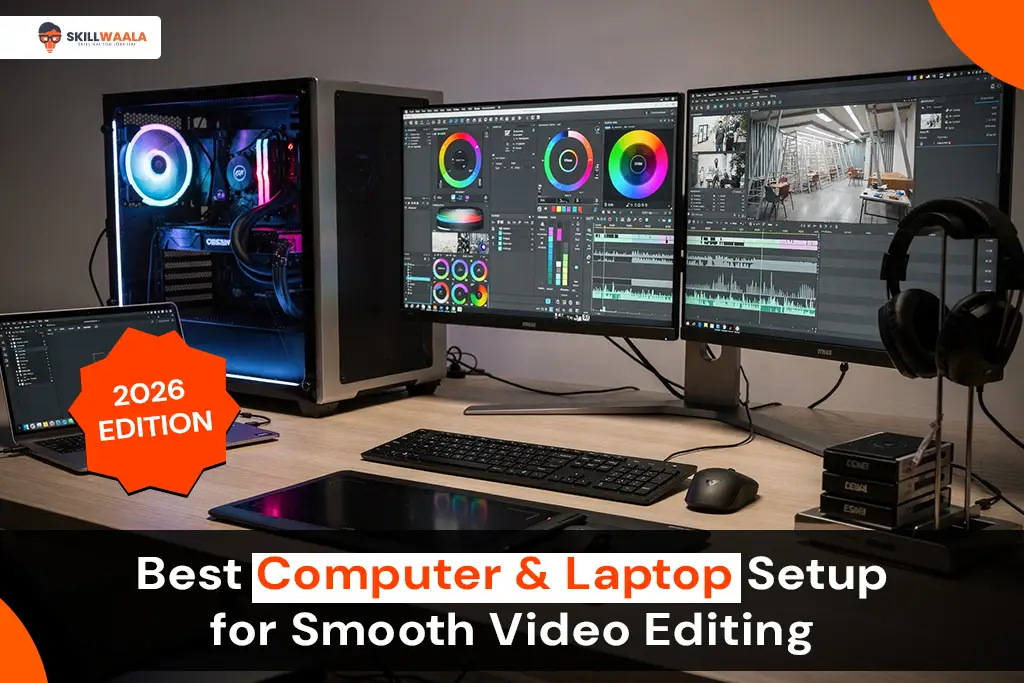
Seeking the ideal setup for seamless video editing? This blog is meant just for you!
Video editing requirements have evolved rapidly, driven by the rise of 4K and 6K workflows, AI-assisted editing, and increasingly faster delivery expectations. Both beginners and pros can achieve smooth editing if they select the right system components. Additionally, as today’s hardware has become increasingly AI-driven, users must focus on both raw performance and AI acceleration.
This guide will simplify the technical decisions and help you choose the right laptop or PC setup based on your use case, budget, and editing style.
System Requirements for Editing in 2026
Here, we have divided the system requirements based on different editing categories:
1. Basic Editing (1080p, simple cuts):
- CPU: Entry-level quad-core
- RAM: 8–16GB
- GPU: Integrated or budget GPU
- SSD: 256–512GB
- Software: CapCut, Filmora, basic DaVinci Resolve timelines
2. Intermediate Editing (4K, color grading, light VFX):
- CPU: 6–8 cores
- RAM: 16–32GB
- GPU: Mid-range (RTX 3050–4060 / RX 7600)
- SSD: 1TB NVMe
3. Professional Editing (6K+, RAW workflows, heavy color grading):
- CPU: 10–16 cores (or high-performance hybrid cores)
- RAM: 32–64GB
- GPU: High-end (RTX 4070–4090 / RX 7900 XT/XTX)
- SSD: 2TB NVMe Gen 4/5 + scratch disk
4. Add notes about software-specific requirements (Final Cut = Mac-only, Resolve loves GPU, Premiere depends heavily on CPU).
5. Explain how AI features (auto subtitles, smart masking, object removal) increase GPU dependency.
Read More – 7 Best Free Video Editing Software
Best Laptop Options (Budget / Mid / High-End)
Here is an insight that will help you choose the best video editing laptop for yourself in 2026:
1. Budget Laptops (₹45K–₹70K)
- Suitable for 1080p editing and light 4K with proxies.
- Recommended CPUs: Ryzen 5 5500U / 7530U, Intel i5 12th/13th gen.
- Look for laptops with RTX 2050 / 3050 for better GPU acceleration.
- SSD upgradability is important; aim for 512GB.
- Good for students, vlog editors, and social media content creators.
2. Mid-Range Laptops (₹70K–₹1.1L)
- Excellent for consistent 4K editing.
- CPUs: Ryzen 7 7735HS / 8845HS, Intel i7 12th–14th gen.
- GPUs: RTX 3050 / 4050 / 4060 (best for Resolve).
- Thermals matter; choose laptops with dual-fan cooling.
- Ideal for YouTubers, wedding editors, and semi-pros.
3. High-End Laptops (₹1.2L–₹2L+)
- Handles 4K–8K flawlessly, ideal for heavy grading, Fusion/After Effects.
- GPUs: RTX 4070 / 4080 / 4090.
- CPUs: Ryzen 9 HS/HX series, Intel i9 HX series.
- Additional features to look for: mini-LED displays, 100% DCI-P3, Thunderbolt, 64GB RAM options.
- MacBook Pro M3/M4 Pro/Max category is excellent for Final Cut and long timelines due to efficiency + strong GPU.
Read More – Latest Video Editing Trends in 2026
Best Desktop PC Builds
Under ₹60K (Beginner/1080p Focus)
Being a beginner does restrict you financially from jumping straight to expensive systems. To cover that up, you need to look for a system that falls within your budget and is capable of performing all the necessary tasks. Look for the following system requirements:
- CPU: Ryzen 5 5600 or Intel i5 12400F.
- GPU: GTX 1660 Super / RTX 3050.
- RAM: 16GB.
- Storage: 500GB NVMe SSD.
- Ideal for offline projects, basic YouTube editors, and students.
Under ₹1 Lakh (4K Editing Sweet Spot)
This is the ideal spot, where you can increase your budget to some extent, but in exchange, you will also open new doors to creating better content. By spending around a Lakh Rupees, you will get to make 4K videos, ensuring the following system requirements:
- CPU: Ryzen 5 7600 / Ryzen 7 5700X / i5 13600K.
- GPU: RTX 3060 / 4060 / RX 7600.
- RAM: 32GB.
- SSD: 1TB NVMe (Gen 4).
- Perfect for wedding films, cinematic edits, and color grading.

₹1.5L+ (Professional/Studio Level)
Taking the budget slightly higher, your content requirements may indicate that you are now involved in more professional and studio-level work. Here is what your system will and should include if you expect it to give that level of performance:
- CPU: Ryzen 9 7900X / Intel i7 14700K / i9 13900K.
- GPU: RTX 4070 / 4080 / 4090.
- RAM: 64GB.
- SSD: 2TB Gen 4/5 + scratch disk.
- Can handle RAW footage, Unreal Engine, Fusion, and VFX.
Read More – Essential Video Editing Skills
Key Components Explained (CPU, GPU, RAM, SSD)
CPU, GPU, RAM, and SSD come together as a unified whole for your system. Each component ensures that your system’s performance is top-notch, uncompromising, and smooth enough to run the heaviest systems, providing the quality you want. Here is an easy breakdown of each component and its functions that enhance your video editing experience.
CPU
- The “brain” for timeline playback, decoding, and exporting.
- More cores = better multitasking + faster exports.
- Higher single-core speed = smoother playback.
GPU
- Critical for color grading, effects, stabilization, and AI tools.
- Resolve and After Effects rely strongly on GPU acceleration.
- VRAM matters:
- 4GB = basic
- 8GB = 4K grading
- 12GB+ = VFX & RAW editing
RAM
- Controls multitasking + timeline smoothness.
- 16GB = minimum for 4K.
- 32GB = ideal sweet spot.
- 64GB = for professionals and heavy compositing.
SSD
- NVMe SSDs drastically improve speed.
- Gen 4/5 recommended for 2026.
- Use separate SSDs for:
- OS + apps
- Media storage
- Cache/scratch disk
Read Also – Common Video Editing Mistakes
Monitor & Color Accuracy
The monitor is the most critical part of your entire system. If you don’t have a good monitor, all the internal components you place in your computer or laptop will not make any sense at all. Grading is an integral part of the whole video editing process. If your monitor is not designed for color accuracy, the grading process will not work efficiently.
- Panel types:
- IPS = best for color accuracy
- OLED = best blacks, but can face burn-in
- Color spaces to look for:
- 100% sRGB (basic)
- 95–100% DCI-P3 (ideal for editing)
- HDR10/DisplayHDR certification
- Recommended sizes: 24–32 inches.
- Calibration tools like Datacolor Spyder for accurate results.
External Storage & Backup Options
Your PC or laptop may have sufficient space to store the pre- and post-editing data, but as you start receiving multiple projects, your system will eventually require additional storage. Here comes the role of HDD or SSD. They are the extra boost you will need to ensure a smooth workflow.
- HDD vs SSD for storage:
- SSD = faster, editing is directly possible
- HDD = cheaper bulk storage
- Recommended workflow:
- SSD for the current project
- HDD for long-term archive
- Backup rules:
- 3-2-1 rule (3 copies, 2 storage types, 1 off-site)
- NAS setups for studios or editors with multiple clients.
Software Optimization Tips
Yes, you have ensured you got the best system with all the necessary features, but the job is not done yet. There are additional steps you need to take to sustain your device for a more extended period. Follow these steps for better software optimization of your systems:
- Clear cache and optimized media rendering.
- Using proxies for smoother editing on low-end systems.
- Turn off background rendering if the system overheats.
- Keep GPU drivers updated.
- Use SSDs for cache files.
- Disable unnecessary startup programs.
AI-Acceleration & GPU Rendering (2026 Tech)
AI Tools like Premiere Pro, DaVinci Resolve, and Final Cut help speed up the whole workflow process. Some of the features, such as Auto Masking, Smart Reframing, AI Noise Removal, and Auto Subtitle Generation, are the most handy ones that can improve your work efficiency by at least 10 times. Besides,
- NVIDIA Studio drivers are tailor-made for creators, video editors, motion designers, 3D artists, and anyone working within Adobe, DaVinci, Blender, Unreal, or similar applications. They’re optimized, tested, and certified to give you fewer crashes, smoother timeline scrubbing, and more stable performance in creative workloads.
- Game-Ready Drivers, on the other hand, are built for day-one gaming performance. They’re updated frequently to squeeze maximum FPS out of new titles, but aren’t necessarily tuned for color grading, GPU rendering, or heavy post-production environments. So if your workflow involves professional editing or design, Studio drivers keep things steady and reliable, while Game drivers are more “peak performance for gamers right now.
Accessories (Keyboard, Mouse, Headphones)
Along with your core hardware, the right accessories can massively boost your editing speed, comfort, and overall workflow:
- Keyboard:
- Editable shortcut keyboards (Logickeyboard, Loupedeck).
- Mechanical keyboards for tactile feedback.
- Mouse vs Editing Trackball:
- Editing becomes smoother with a precision trackball, so if you get a choice between a mouse and a trackball, choose a trackball.
- Editing becomes smoother with a precision trackball, so if you get a choice between a mouse and a trackball, choose a trackball.
- Headphones:
- Closed-back for editing
- Open-back for colorists or audio mixers
- Extras:
- UPS system for voltage protection
- Desk with good cable management
- Laptop cooling pads for editors on portable systems
Future-Proofing Your Setup
Future-proofing your set-up is critical when you see long-term career growth in the video editing realm. Here is the list of factors you need to ensure a better future for your setup:
- Choose components with upgradability (desktop RAM, GPU, storage).
- Pick motherboards with PCIe Gen 4/5.
- Avoid 8GB RAM laptops in 2026; they are not future-proof.
- Keep room for 32GB RAM or a GPU upgrade if using a desktop.
- Invest in AI-ready GPUs (NVIDIA 40-series, AMD 7000-series).
- Prefer 4K monitors even when editing 1080p content (for better clarity and color consistency).
Conclusion
Don’t overspend on flashy specs; focus on balance. A strong CPU, a decent GPU, and a fast SSD will handle 90% of projects. Upgrade smartly as your work grows. Invest in quality components that offer good value for your budget. Regularly reassess your needs to ensure your setup evolves with your projects.

FAQs
A1. You require a minimum of 16GB RAM for basic-level editing. But if you want to edit 4K videos, your system will need at least 32GB of RAM.
A2. Laptops are considered more budget-friendly, whereas if you’re looking for better performance and upgradability, consider a PC.
A3. NVIDIA RTX 4060 or AMD RX 7800 are the best GPUs for editors in 2026.
A4. Use proxy files and keep your SSD at least 20% free; this way, you can experience a smooth editing experience.
A5. Laptops are sufficient for basic editing, but for editing 4 K or higher-quality videos, you need to opt for high-end laptops.
About The Author